
Sign in with your email and password
What it is and why it matters
Everything you do in Syndra starts at the sign-in page: checking today's appointments, answering client messages, sending an invoice after a groom or a color service, or updating your website. The sign-in page is the one screen you see before you're inside your account, and it's where you prove it's really you.
This article shows you how to sign in with the email address and password on your Syndra login. It takes you from the sign-in page, through the Verify Security Code screen Syndra shows when you sign in on a new browser, up to the moment you type in the six-digit code from your email. If you usually sign in another way, ask your account admin or email [email protected].
The sign-in page also has a Platform Language dropdown in the top-right corner of the page, outside the sign-in box. It changes the language of the sign-in page, which can help if some of your front-desk team or groomers are more comfortable in another language.
What you need before you start
- A Syndra login. This is the email address your account admin added for you. If you're a team member and you've never had a login, ask your account admin to add you first.
- Your password. If you've forgotten it, see Reset a forgotten Syndra password before you start.
- Your Syndra login page. This is the web address your Syndra account uses for signing in. Bookmark it once you've found it so you can get back quickly.
- Access to the inbox for your login email. When you sign in on a new browser, Syndra emails a security code to the email address on your login, so have that inbox handy.
Steps
Open your Syndra login page in your web browser.
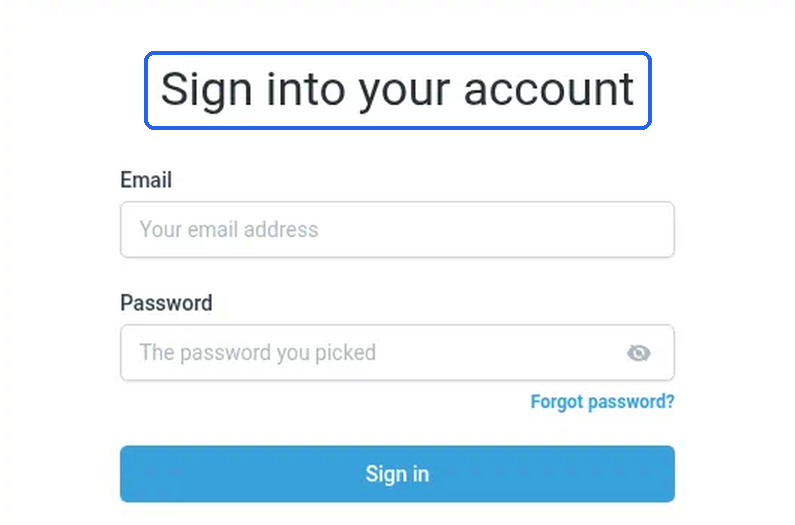
What you should see: a box headed Sign into your account. It has an Email box (it says "Your email address" until you type), a Password box (it says "The password you picked"), a Forgot password? link and a blue Sign in button. The words "By signing in you agree to our Terms and Conditions" are at the bottom of the box.

Terms and Conditions is a link. Clicking it opens Syndra's Terms of Service in a new browser tab, so your sign-in page stays open in the original tab.
(Optional) To see the page in a different language, click the Platform Language dropdown in the top-right corner of the page and choose your language.
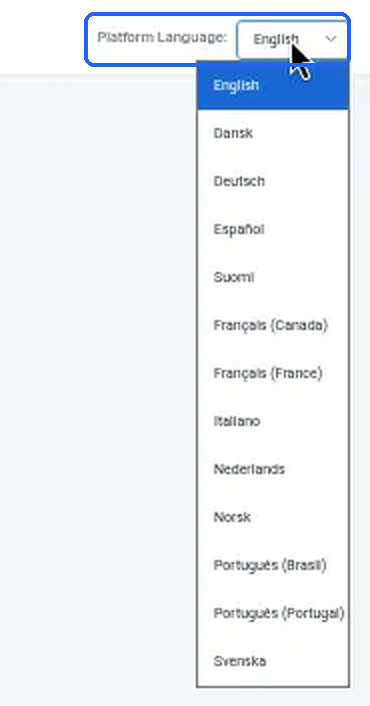
What you should see: the list of languages: English (the default), Dansk, Deutsch, Español, Suomi, Français (Canada), Français (France), Italiano, Nederlands, Norsk, Português (Brasil), Português (Portugal) and Svenska.
Click in the Email box and type the email address on your Syndra login.
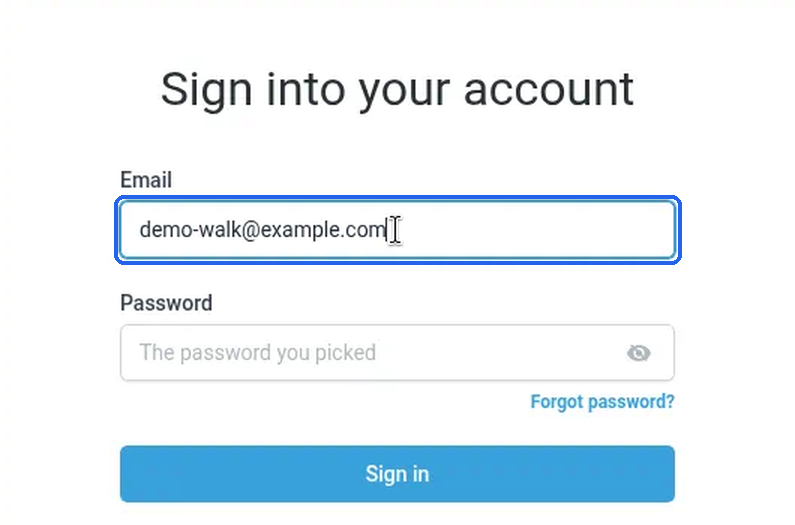
What you should see: your email address in the box, exactly as you typed it.
Click in the Password box and type your password.
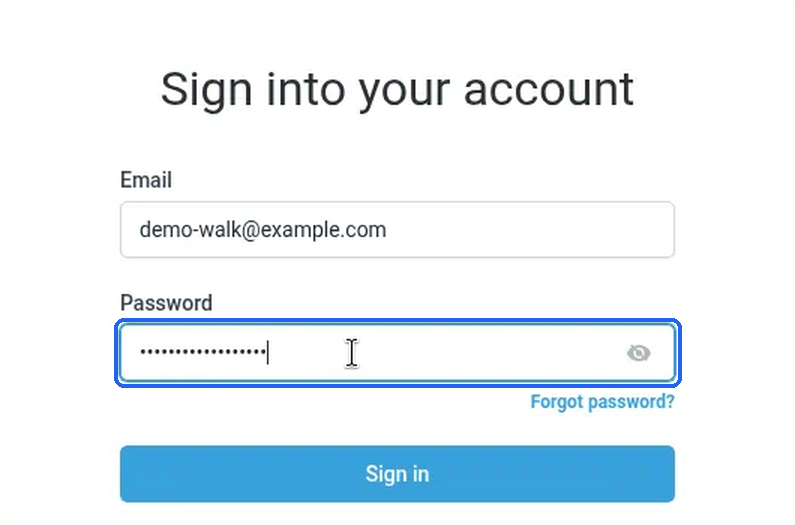
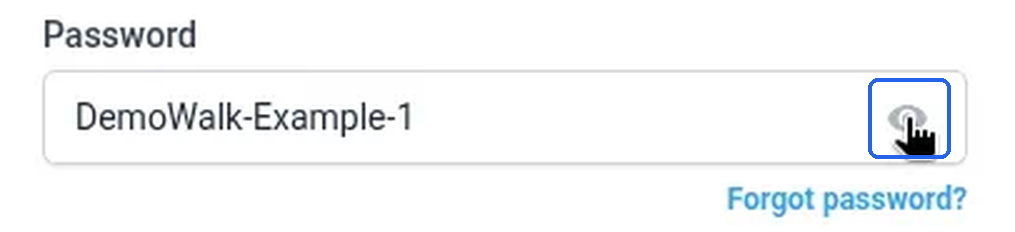
What you should see: your password shows as dots. There's an eye icon at the right of the box if you want to check what you typed (see troubleshooting below).
Click Sign in.
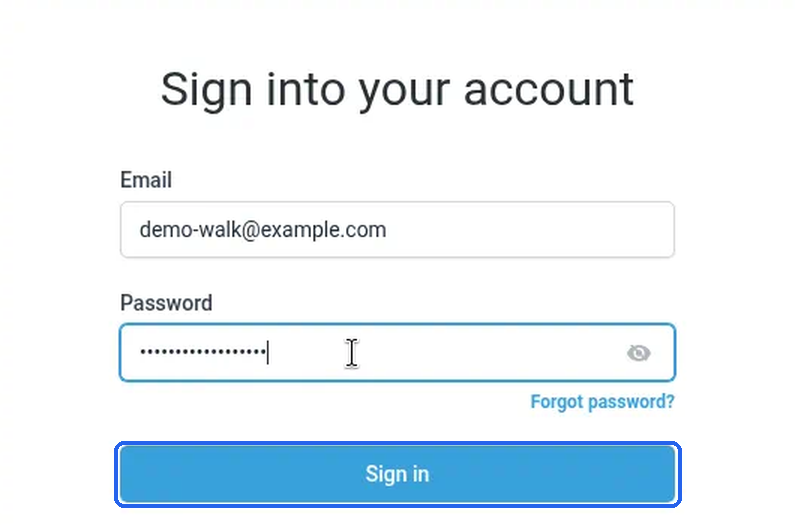
What you should see: on a new browser, Syndra first shows a Verify Security Code screen (see steps 5a to 5c below).
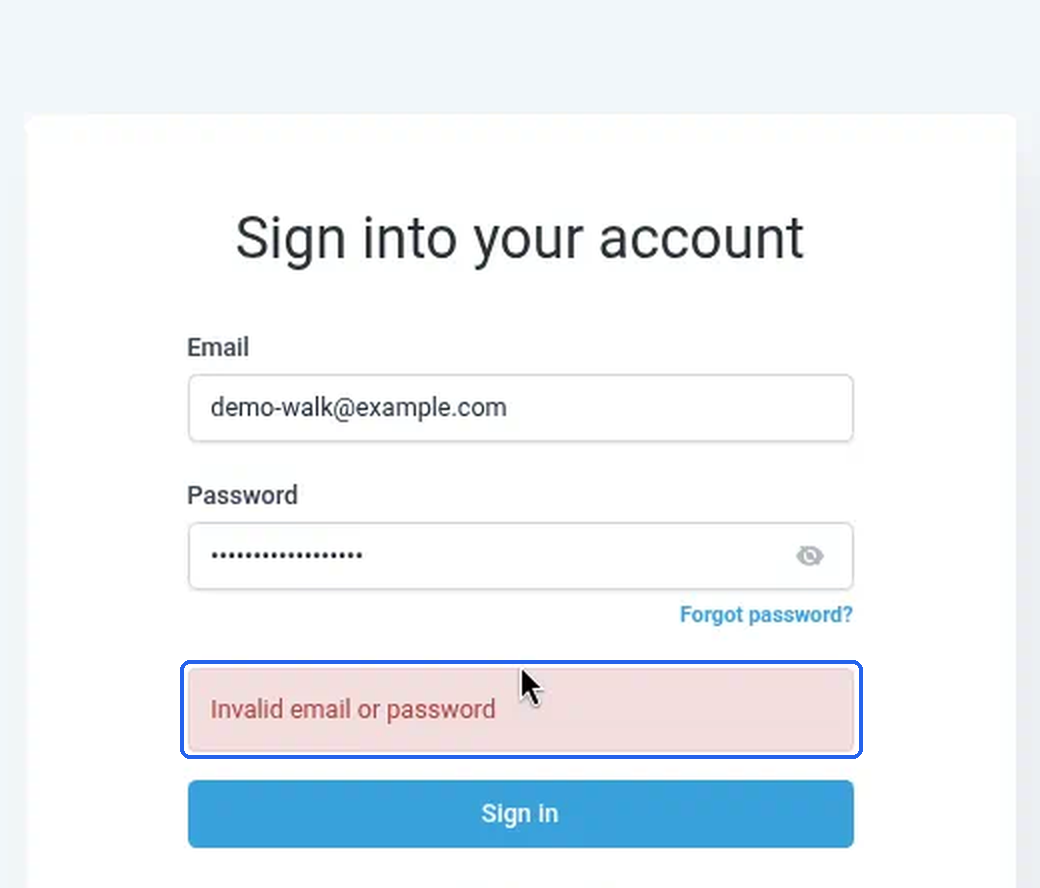
If a pink box saying Invalid email or password appears above the Sign in button instead, see Common mistakes and troubleshooting below.
If you're asked for a security code
When you sign in on a new browser, Syndra emails a six-digit security code to the email address on your login, as an extra sign-in check.
Wait a moment after clicking Sign in.
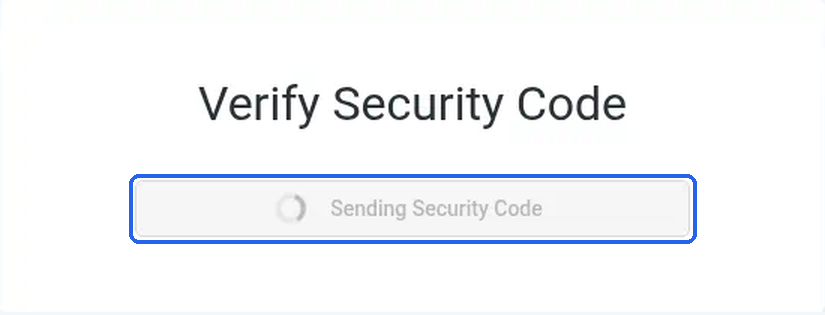
What you should see: a screen headed Verify Security Code, with a grey bar that says Sending Security Code while the code is sent.
When the six boxes appear, check the message under them.
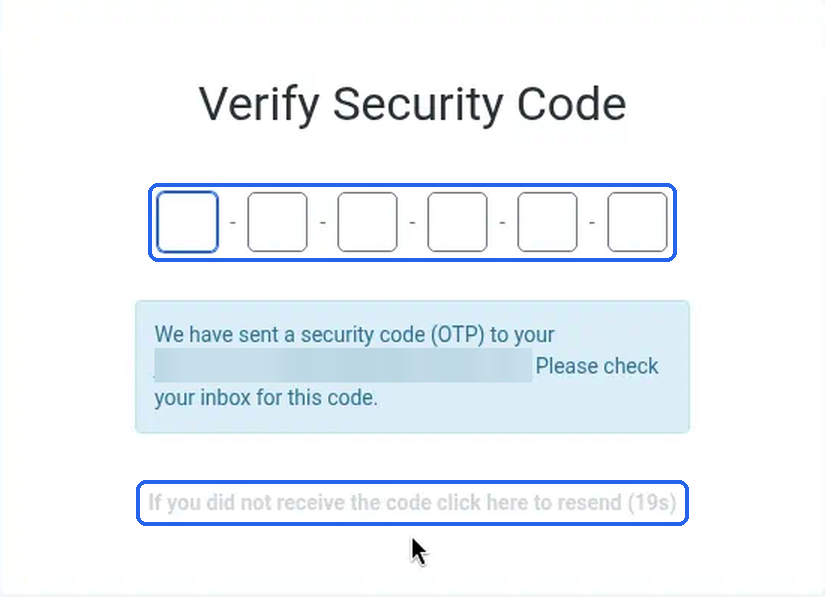
What you should see: six small boxes, and a blue message: "We have sent a security code (OTP) to your" followed by your email address with most of it hidden by stars (for example yo*******@yourbusiness.com), then "Please check your inbox for this code." Under it, a grey line says "If you did not receive the code click here to resend", with a countdown in seconds (for example (19s)).
Open the inbox for your Syndra login email and find the email with the subject Login security code.
What you should see: an email that starts "Hi" and your first name, and gives you a one-time login code of six digits. It also tells you roughly where the sign-in is coming from (a city) and which device and browser are being used (for example Linux and Chrome), and asks you to check that you're on the correct web address.
Before you use the code, check that the location and device in the email match where you are and what you're using. If they do, type the six digits into the boxes on the Verify Security Code screen. Never share this code with anyone.
That's the last step this article covers. It doesn't cover what you see after you type the code. If you get stuck, check Common mistakes and troubleshooting below, or email [email protected] and we'll help.
What success looks like
You've finished this article when:
- You typed your email address and password and clicked Sign in, and no Invalid email or password message appeared.
- On a new browser, you saw the Verify Security Code screen with six boxes and the message "We have sent a security code (OTP) to your" email address.
- You found the Login security code email in the inbox for your Syndra login and typed the six digits into the boxes.
Common mistakes and troubleshooting
You see "Invalid email or password".
This message appears in a pink box just above the Sign in button. It means the email address and password didn't match a Syndra login. The same message is used whether the email or the password is wrong, so check both. Watch for a stray space, Caps Lock, or the wrong email address. Then try again.
The security code email doesn't arrive.
Check your spam or junk folder. Make sure you're looking in the inbox for the email address on your Syndra login (the message on screen shows its first two letters and the domain). If you see the line "If you did not receive the code click here to resend" with a countdown, wait until the countdown runs out before you try it. If a code still doesn't arrive, email Syndra support at [email protected].
The security code email shows a location or device that isn't you.
Don't enter the code. Someone else may be trying to sign in with your email address and password. Reset your password using Forgot password? (see Reset a forgotten Syndra password), and email Syndra support at [email protected] straight away.
You forgot your password.
Click Forgot password? just under the Password box and follow the steps in Reset a forgotten Syndra password.
You're not sure the password is typed correctly.
Click the eye icon on the right of the Password box. It shows what you've typed so you can check it.
You're typing a different email address from the one on your login.
Many people have a personal address and a business address. Use the exact address your account admin added for you. If you're not sure which one that is, ask your account admin.
Your invite went to the wrong address.
Your account admin can correct it.