
Reset a forgotten Syndra password
What it is and why it matters
It happens to everyone: a new phone, a browser that stopped remembering your password, or a login you only use on the front-desk computer. If you can't remember your Syndra password, you don't need to wait for anyone to let you back in. The sign-in page has a Forgot password? link that emails you a reset link, so you can choose a new password and get back to your appointments and client messages.
This is the right page for you if you know which email address your Syndra login uses but can't remember the password. If you're a team member and your login was set up with the wrong email address, a reset won't reach you. Ask your account admin to correct the address first.
What you need before you start
- The email address on your Syndra login. The reset link goes to this address, so it has to be the exact one your login uses.
- Access to that email inbox, so you can open the reset email. The link in it only works for 2 hours, so do this when you have a few minutes free.
- Your Syndra login page, where the Sign into your account box appears.
- A new password that follows the rules: more than 12 characters, with at least one uppercase letter, one lowercase letter, one number and one special character (for example
!or#).
Steps
Open your Syndra login page.
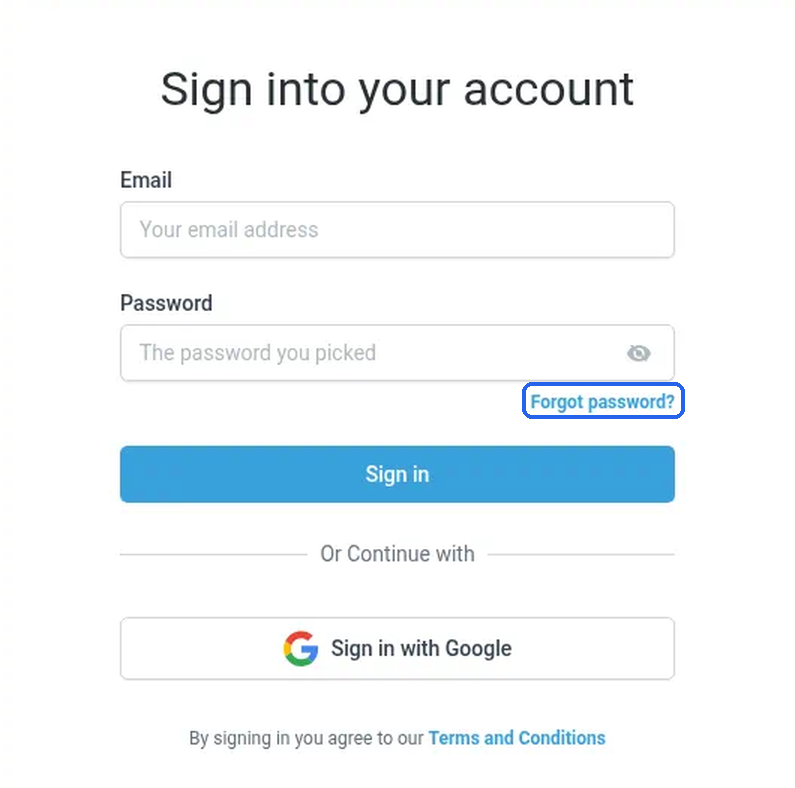
What you should see: the Sign into your account box, with a small blue Forgot password? link just under the Password box.
Click Forgot password?.
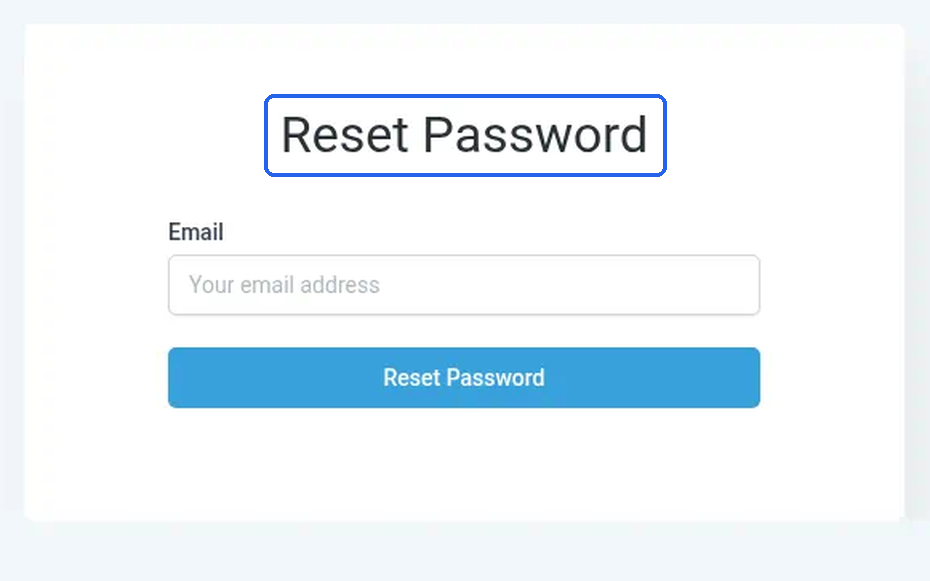
What you should see: a screen headed Reset Password, with one Email box (it says "Your email address") and a Reset Password button. The Email box starts empty, even if you typed your address on the sign-in page.
In the Email box, type the email address on your Syndra login.
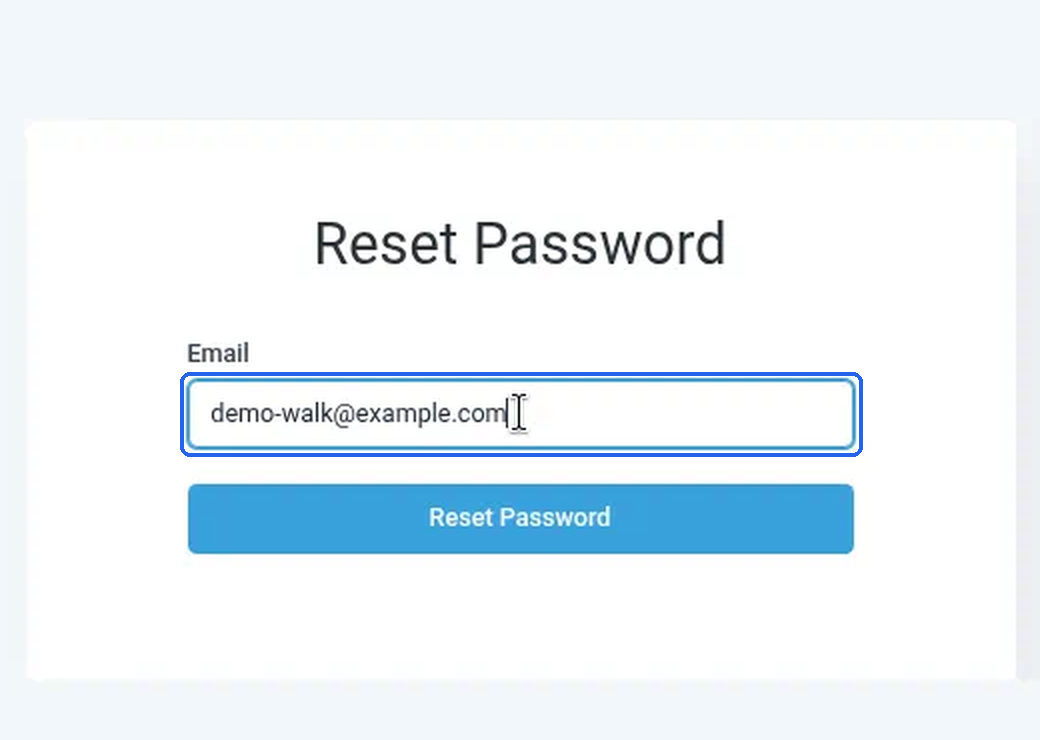
Click the Reset Password button.
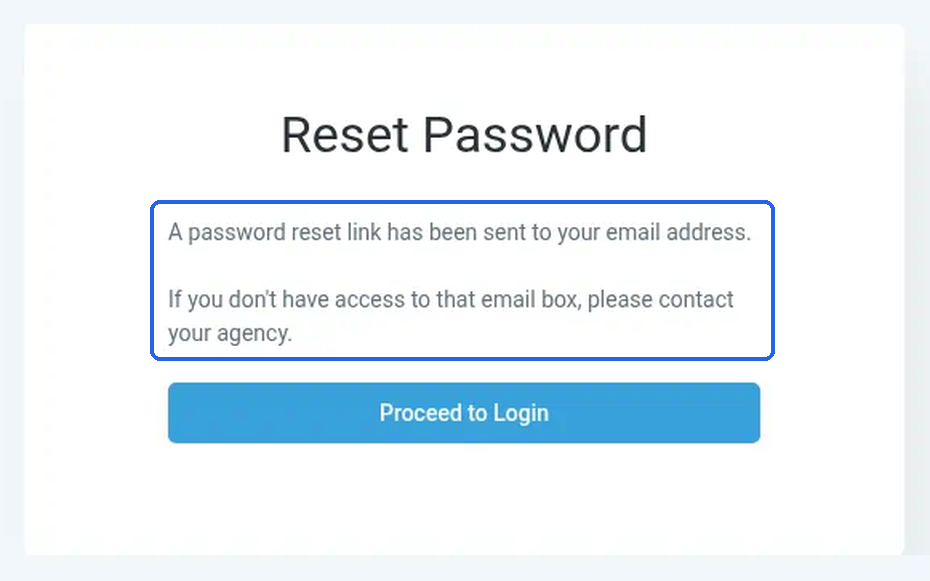
What you should see: the message "A password reset link has been sent to your email address." and a Proceed to Login button. The message also says to contact your agency if you can't get into that email box. For you, that means emailing Syndra support at [email protected].
This same message appears whether or not the address you typed is on a Syndra login. It doesn't confirm that your address was found.
Open your email inbox and find the email with the subject Reset password. It can take a few minutes to arrive. Don't forward the reset email. Anyone with the link can set a new password until it expires.
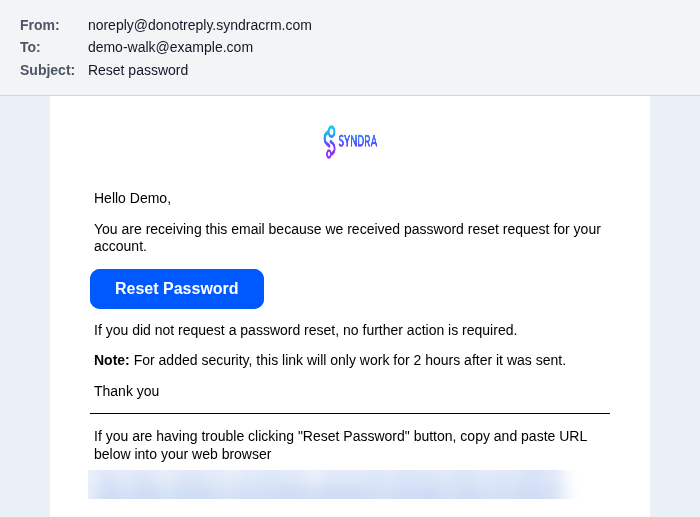
What you should see: an email that starts "Hello" with your first name, says a password reset was requested for your account, and has a Reset Password button. Under the button is a note that the link only works for 2 hours after it was sent, and a link you can copy and paste into your browser if the button doesn't work.
Click Reset Password in the email. If the button doesn't work, copy the link at the bottom of the email and paste it into your browser's address bar.
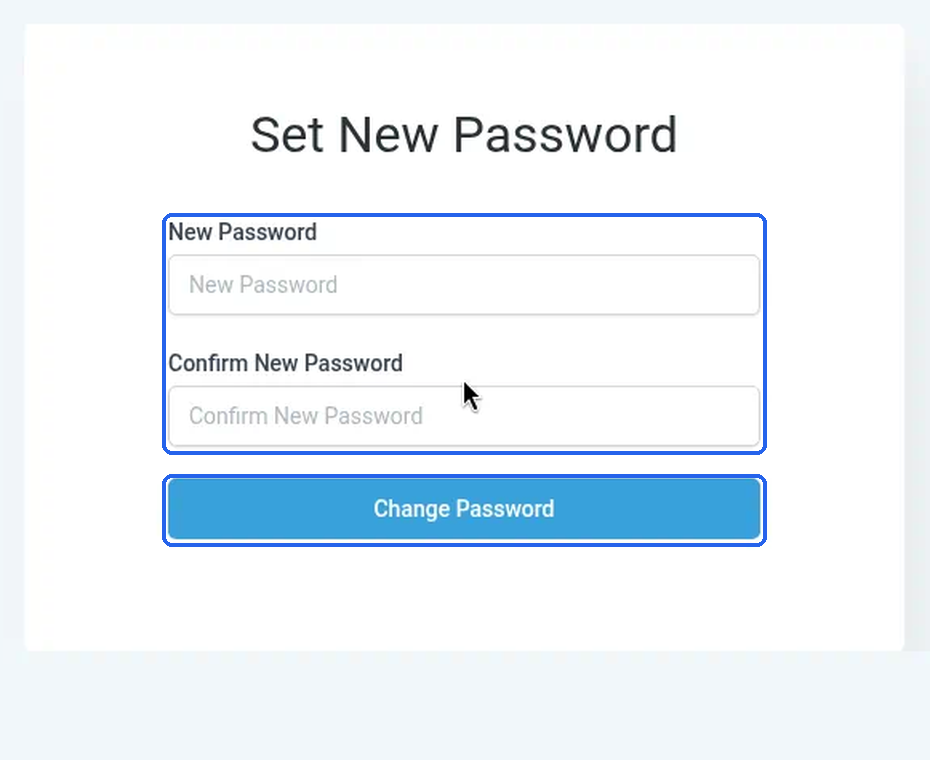
What you should see: a screen headed Set New Password, with a New Password box, a Confirm New Password box and a Change Password button.
Type your new password in the New Password box.
Type the same password again in the Confirm New Password box.
Click Change Password.
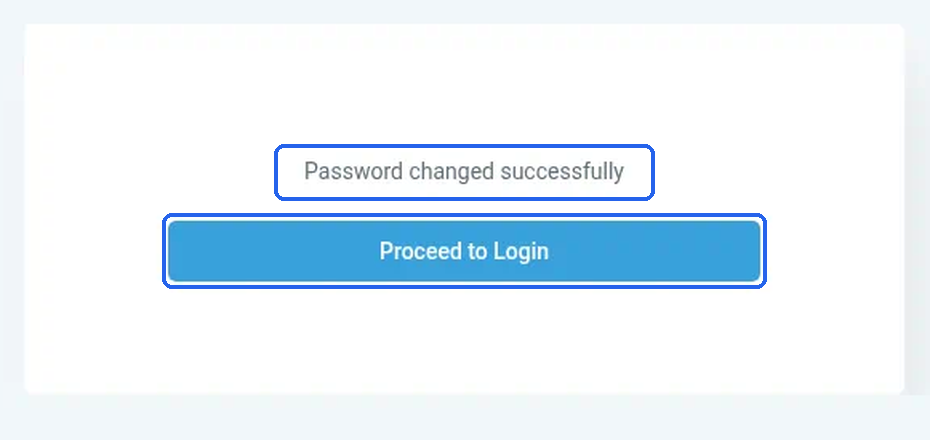
What you should see: the card changes in place to "Password changed successfully" with a Proceed to Login button. No pop-up message appears, and you aren't signed in yet.
Click Proceed to Login.
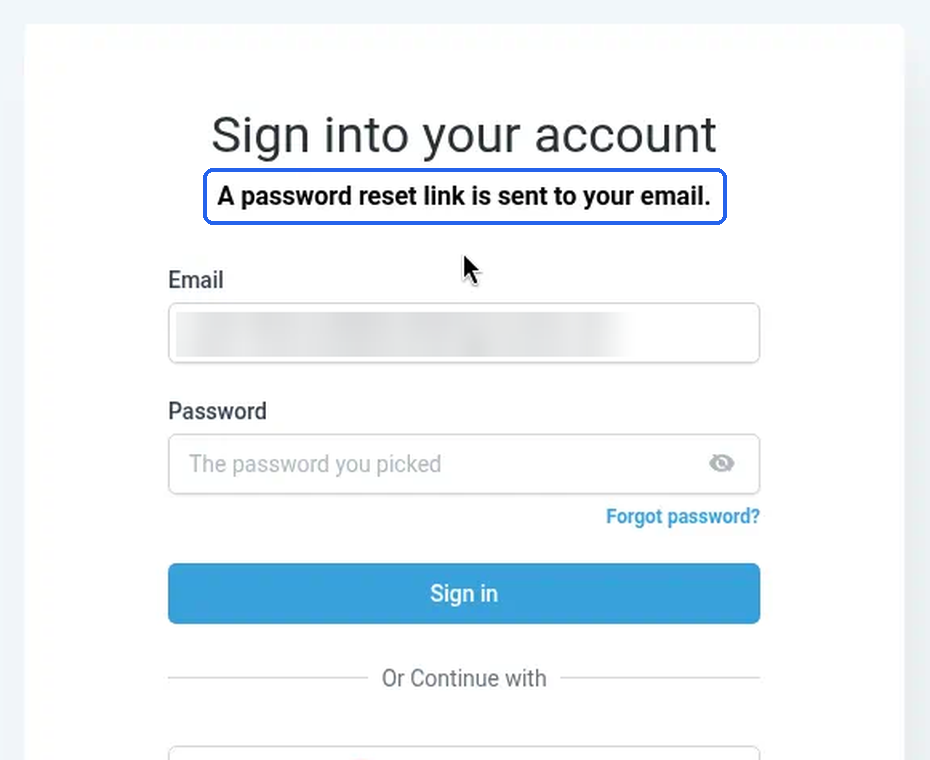
What you should see: the Sign into your account page, with your email address already filled in and a bold line under the heading: "A password reset link is sent to your email." That line is normal after a reset, even though you've already chosen your new password. You don't need to do anything with it. Just sign in with your new password.
Type your new password in the Password box and click Sign in. For the rest of the sign-in, see Sign in with your email and password.
If you're signing in on a new browser, Syndra asks for one more check first: a screen headed Verify Security Code asks for a six-digit code that it emails to the address on your login. Open that email, type the code into the six boxes, and continue. See Sign in with your email and password for what this screen looks like.
What success looks like
You see "Password changed successfully", and the sign-in page accepts your email address and the new password you just chose. Your old password no longer works.
Common mistakes and troubleshooting
The reset email doesn't arrive.
Check your spam or junk folder, and search your inbox for the subject Reset password. Then check you typed the email address exactly as it appears on your Syndra login. The Reset Password screen shows the same message whether or not the address is on a login, so it won't warn you about a typo. One wrong letter, or using your personal address instead of your business one, means the email won't reach you.
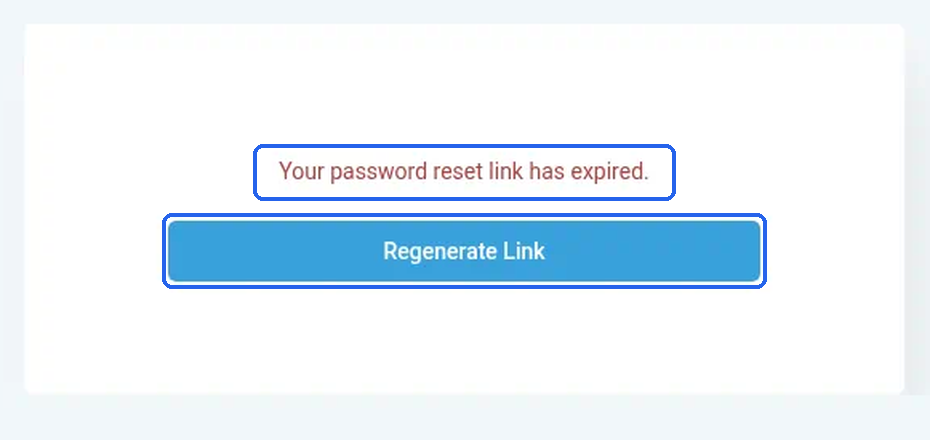
You see "Your password reset link has expired." with a Regenerate Link button.
This appears when you open a reset link that has already been used, or one that's more than 2 hours old. Each link works only once. Click Regenerate Link — it takes you to the Reset Password form with an empty Email field (placeholder "Your email address") and a Reset Password button. It does not email a new link by itself; enter your email again and submit, or go back to sign-in and use Forgot password?.
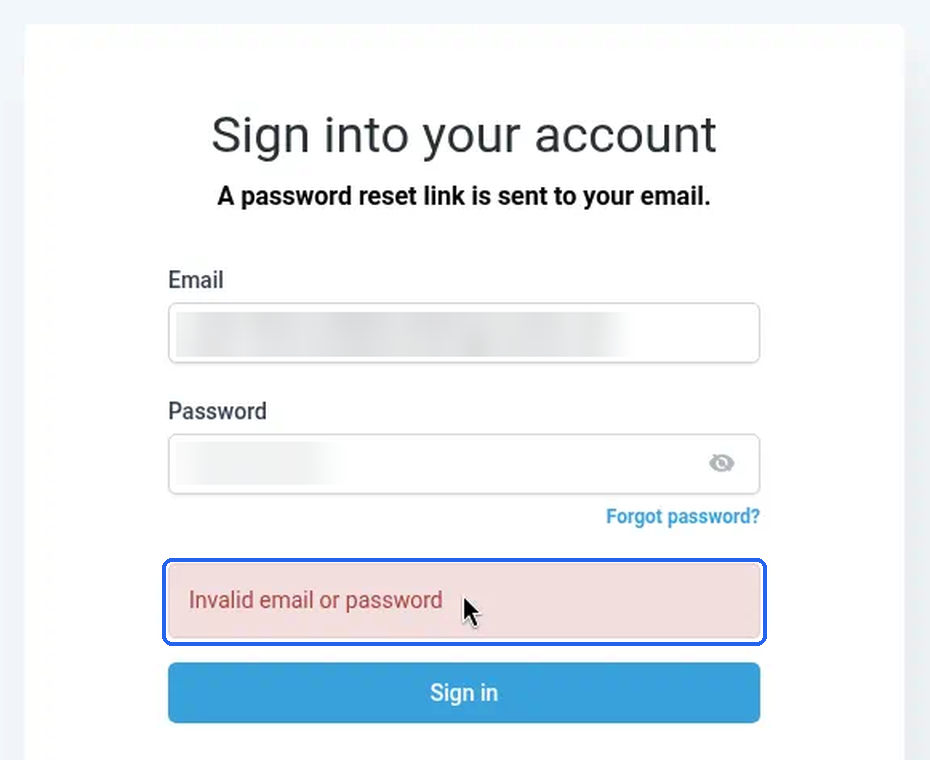
You see "Invalid email or password" right after a reset.
Make sure you're typing your new password. Your old password stops working as soon as you click Change Password. If your browser filled in a saved password, clear the box and type the new one.
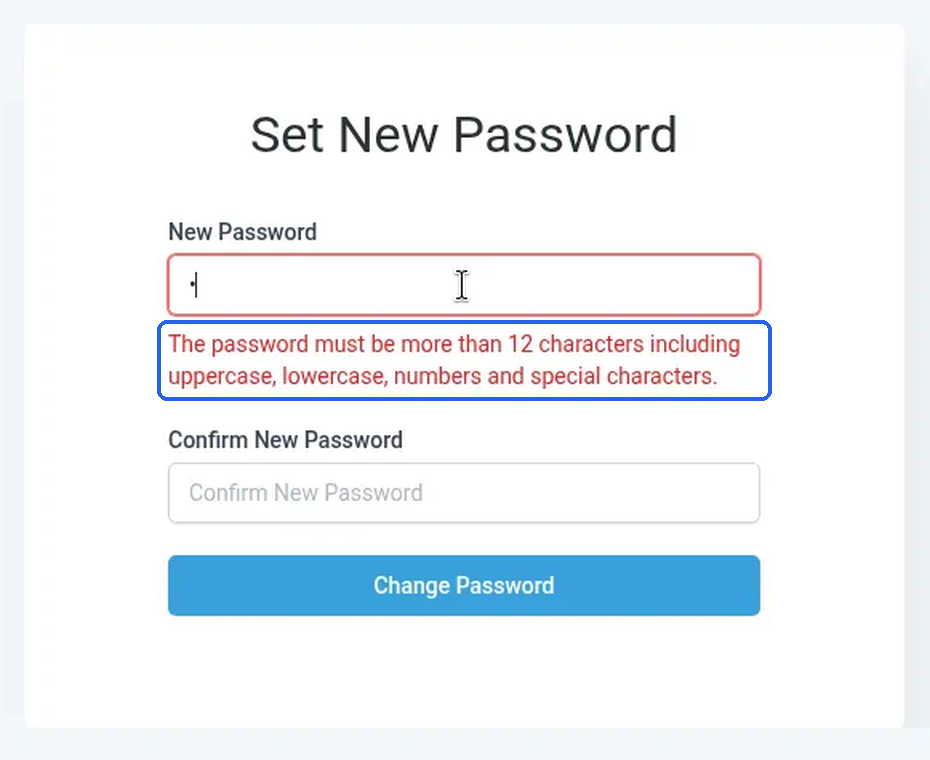
You see "The password must be more than 12 characters including uppercase, lowercase, numbers and special characters."
This shows under New Password when your new password doesn't follow the rules. Make it longer than 12 characters and include an uppercase letter, a lowercase letter, a number and a special character.
You see "The password field is required".
The New Password box was left empty. Type your new password, then confirm it.
You don't know which email address your login uses.
Ask your account admin.
Your login was created with the wrong email address.
A reset can only go to the address on file. Ask your account admin to correct it first, then reset.
You usually sign in another way, not with a password.
Ask your account admin, or email [email protected].