
Start a new email campaign (open the builder)
What it is and why it matters
An email campaign is a single email you send to a group of clients, for example a newsletter, a holiday hours notice, a "we're booking out two weeks" update, or a post-purchase thank-you.
This article walks you to the place where you write that email. You'll find your campaigns list, start a new campaign from the + New menu, choose how you want to edit it, give it a name, and save it as a draft. You'll also learn how to find and reopen that draft later.
It stops there on purpose. Writing the email, previewing it, and sending or scheduling it are covered in their own article. Nothing in this article sends anything to anyone. When you do send, only email people who've agreed to hear from your business, and keep the unsubscribe link and your business mailing address in the footer.
What you need before you start
- Availability depends on your plan.
- A Syndra login that can open Marketing > Emails. If you don't see it, ask your account admin.
- A few minutes. Choosing Blank creates a draft straight away, and the editor saves your changes automatically as you go.
- Your from name and from address sorted out before you eventually send. See Check how your Syndra emails are being sent (and why it affects the spam folder).
Steps
In the left-hand menu, click Marketing.
What you should see: the Marketing area. It often opens on Social Planner and can take a moment to load. Along the top are the Marketing tabs, including Emails.
Click the Emails tab.
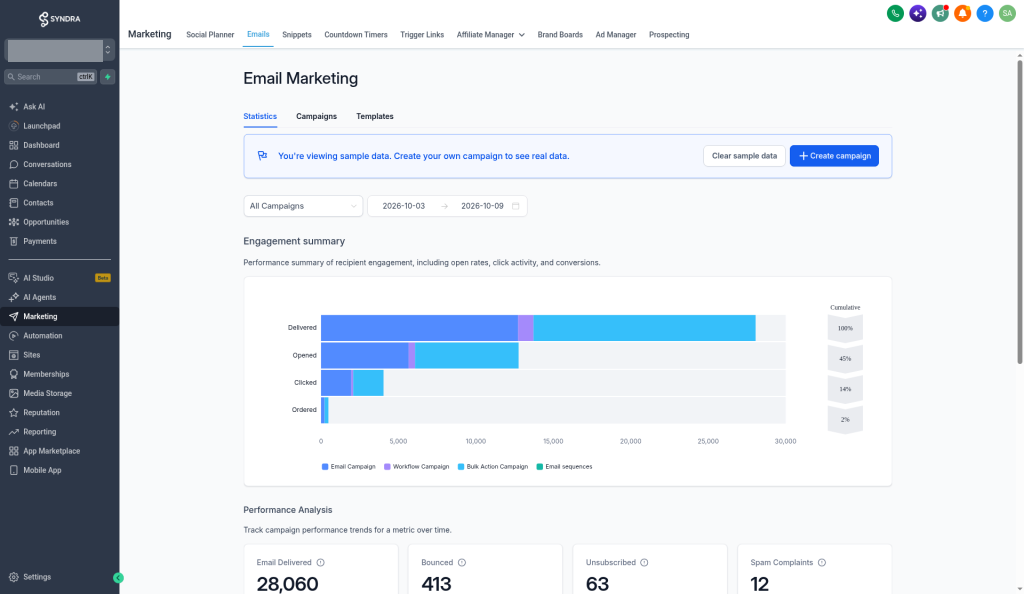
What you should see: the email area opens on the Statistics sub-tab. There are three sub-tabs: Statistics, Campaigns and Templates. If you see a banner that reads You're viewing sample data, that means the numbers and charts are examples, not your real results. Nothing is wrong.
Click the Campaigns sub-tab.
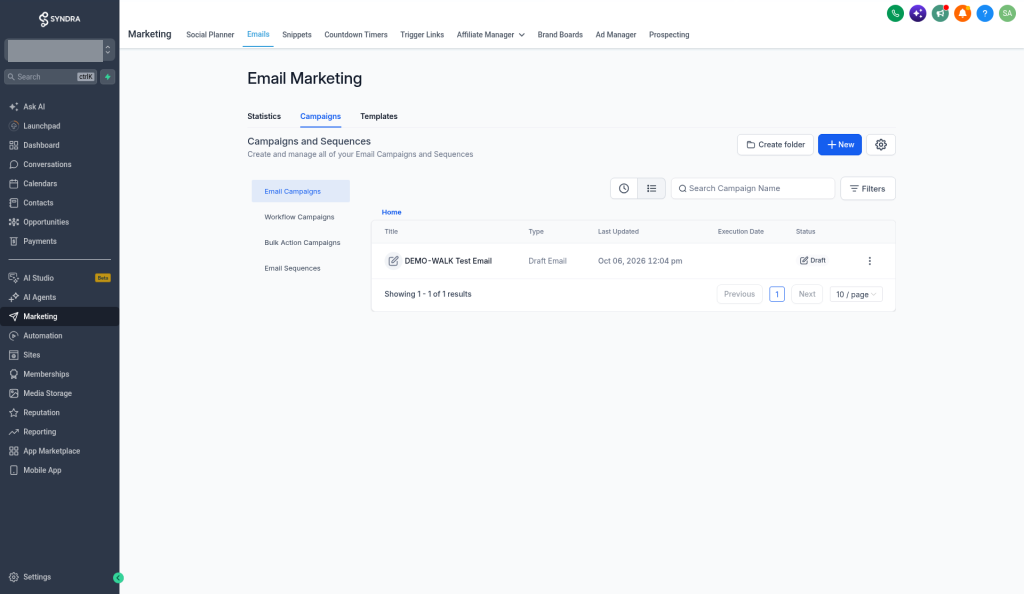
What you should see: your campaigns list. On the left are four filters. Email Campaigns is selected to start with.
Get to know the four filters on the left. You can click each one to look; looking doesn't change anything.
- Email Campaigns: one-off emails, such as a newsletter or an announcement. This is where your new campaign will appear. The list has the columns Title, Type, Last Updated, Execution Date and Status.
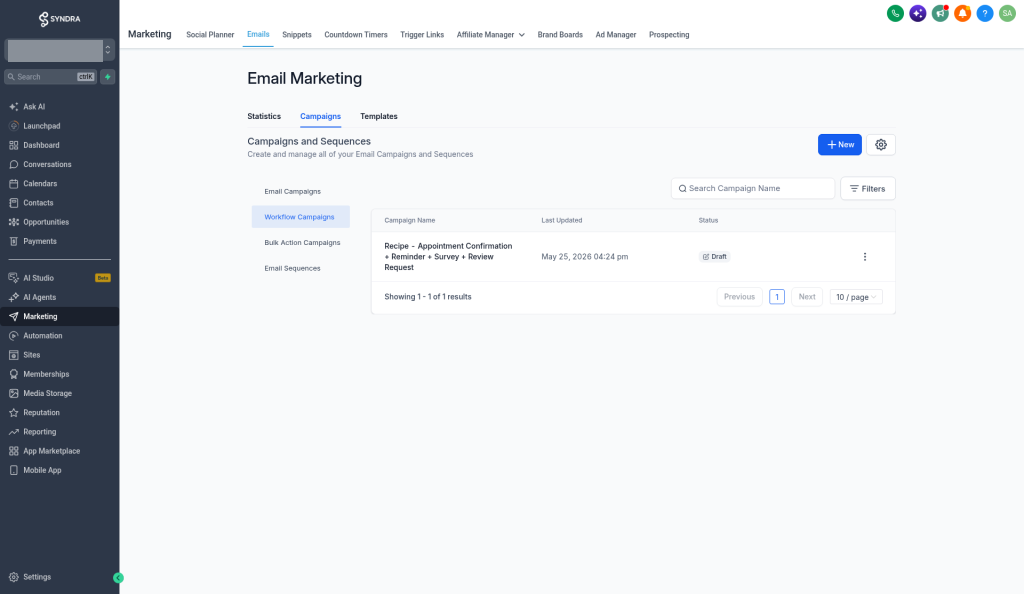
Workflow Campaigns: emails that are sent from your automations. The list has the columns Campaign Name, Last Updated and Status.
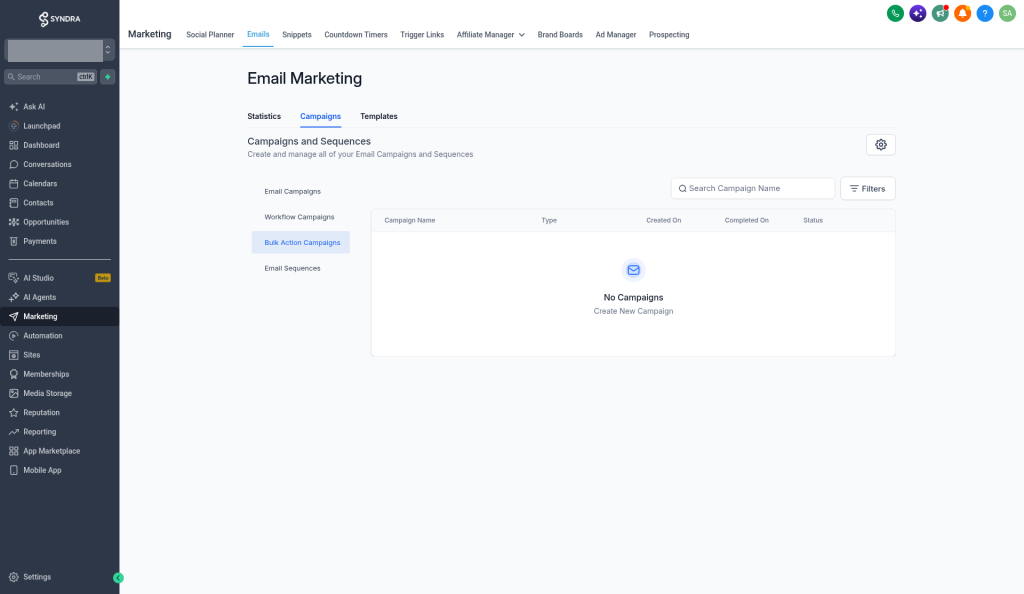
Bulk Action Campaigns: if you have none, the page reads No Campaigns with Create New Campaign underneath.
Email Sequences: a series of emails that go out over time. If you have none, the page reads No email sequences. We couldn't find any email sequences, try creating a new sequence. with a Create an email sequence button. Sequences have their own article; you don't need this filter for a one-off email.
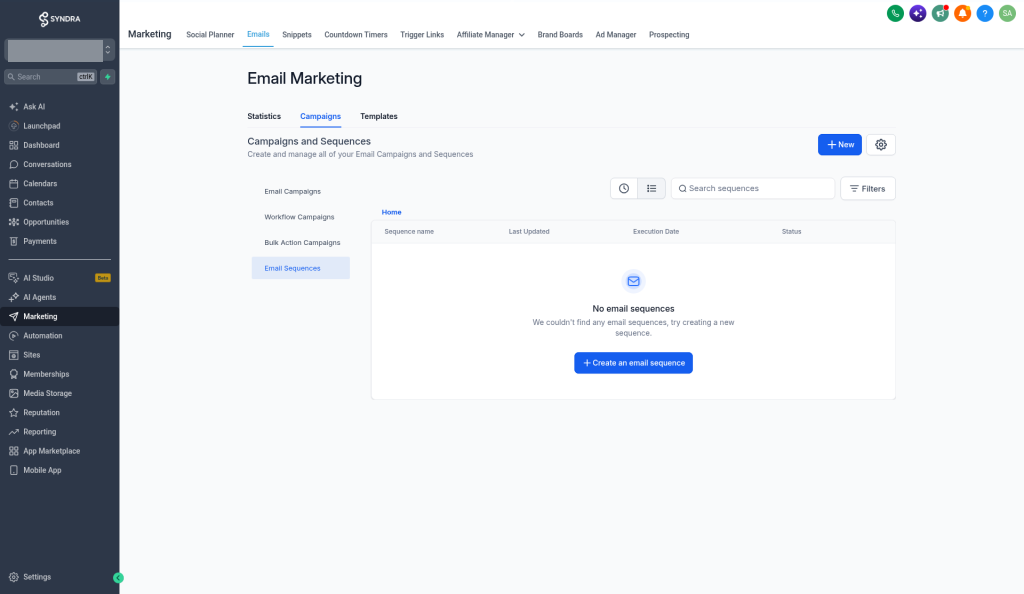
What you should see: each filter shows its own list, or an empty-state message if you have none of that kind yet. Click Email Campaigns again before you go on.
Click the blue + New button at the top right of the list.
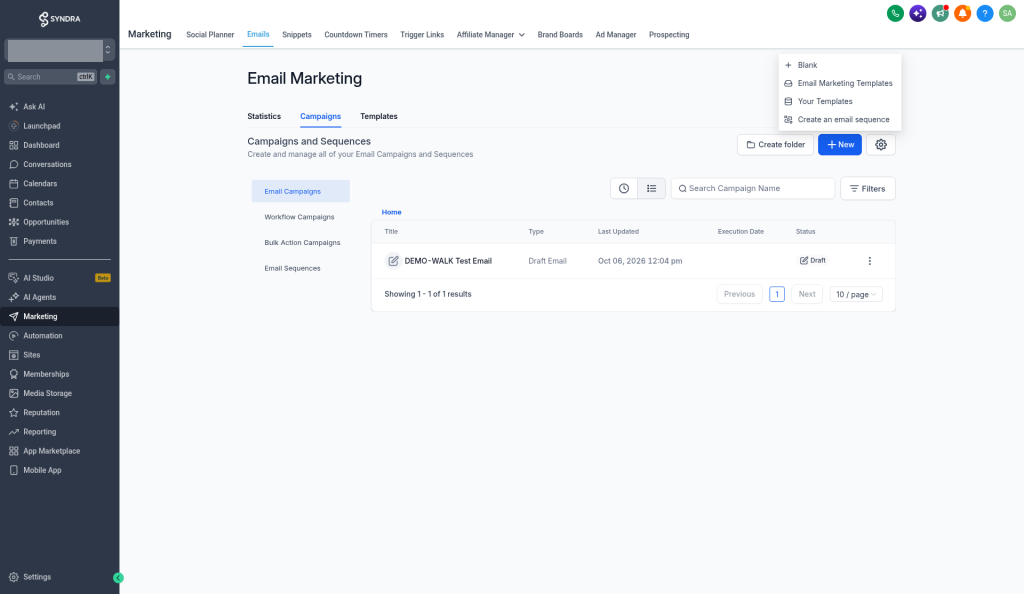
What you should see: a menu with four choices:
- Blank: start from an empty email.
- Email Marketing Templates: start from a ready-made template.
- Your Templates: start from a template you've saved before.
- Create an email sequence: start a series of emails instead of a one-off. That's a different article.
Click Blank.
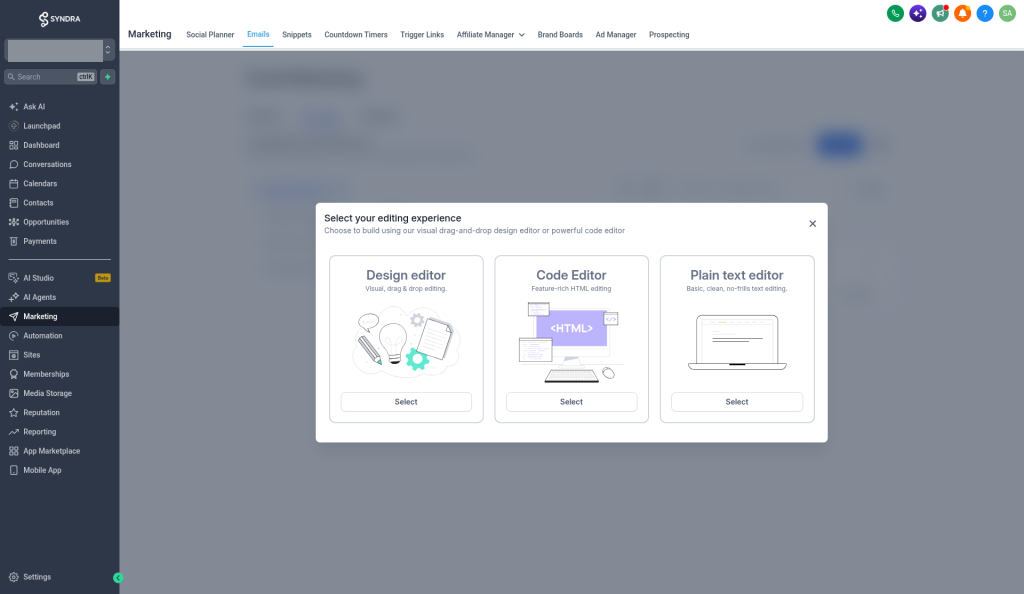
What you should see: before the editor opens, a window titled Select your editing experience asks how you want to build the email. There are three options:
- Design editor
- Code Editor
- Plain text editor
Choose the editing experience you want.
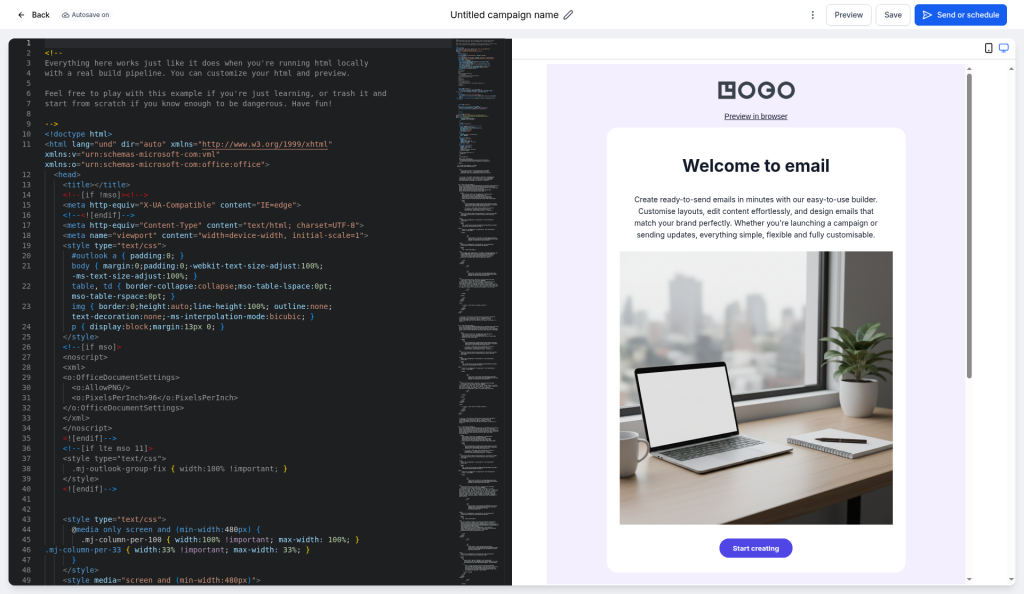
What you should see: the email editor opens. (The screenshots show the Code Editor.) At the top, the campaign is called Untitled campaign name. Across the header are the buttons Back, Preview, Save, a ⋮ menu, and Send or schedule.
Your new campaign already exists as a draft at this point, and autosave is on, so your work is kept as you go.
Give the campaign a name you'll recognise. Click Untitled campaign name in the editor header and type a new name, for example "November newsletter".
Click Save.
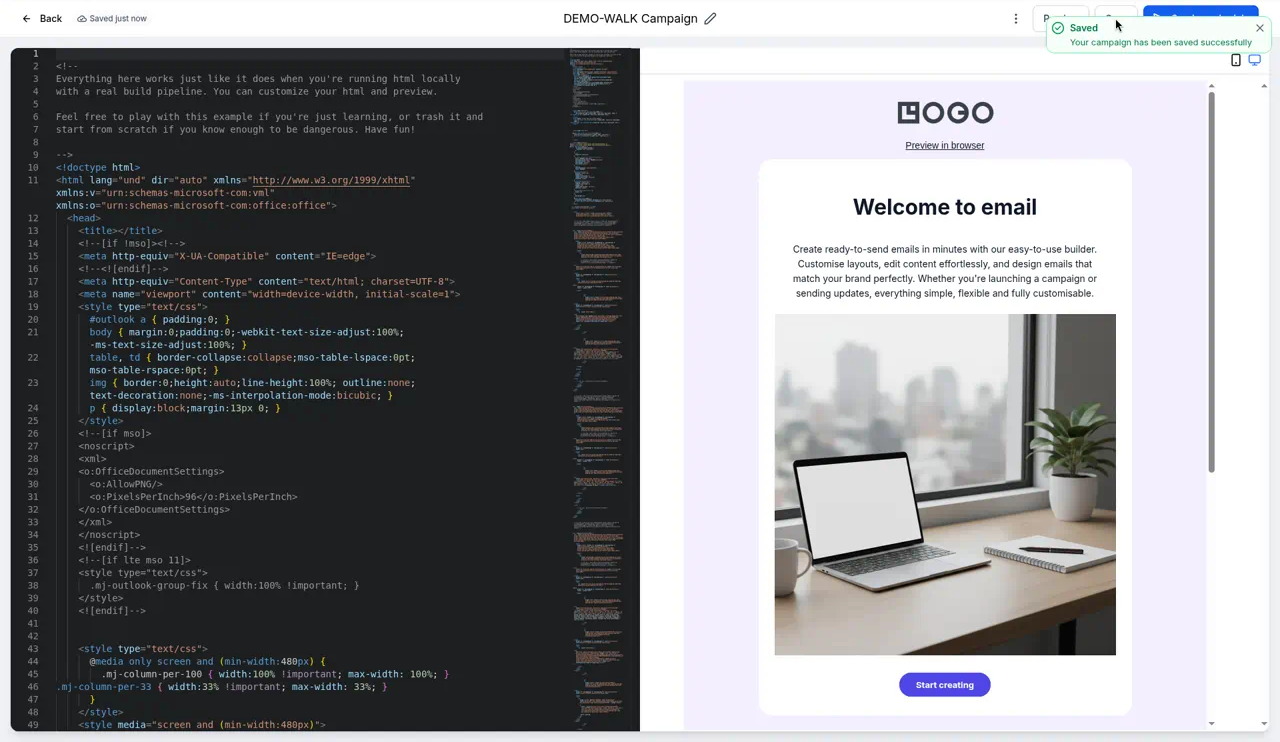
What you should see: a confirmation that reads Your campaign has been saved successfully, and your new name in the header.
Don't click Send or schedule now. Sending and scheduling are covered in their own article.
Click Back to return to your campaigns list.
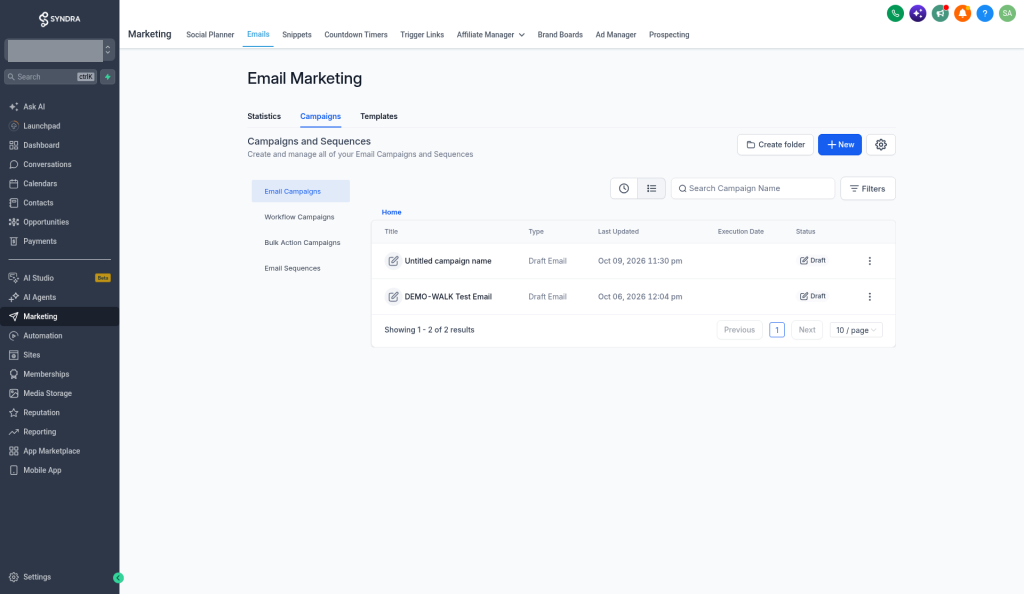
What you should see: your campaign in the Email Campaigns list with the status Draft. (The draft shows up in the list as soon as you choose Blank, even before you rename it. If you left without renaming it, it's listed as Untitled campaign name.)
Reopen your draft later
- Go to Marketing > Emails > Campaigns, with Email Campaigns selected on the left.
Click the draft's title.
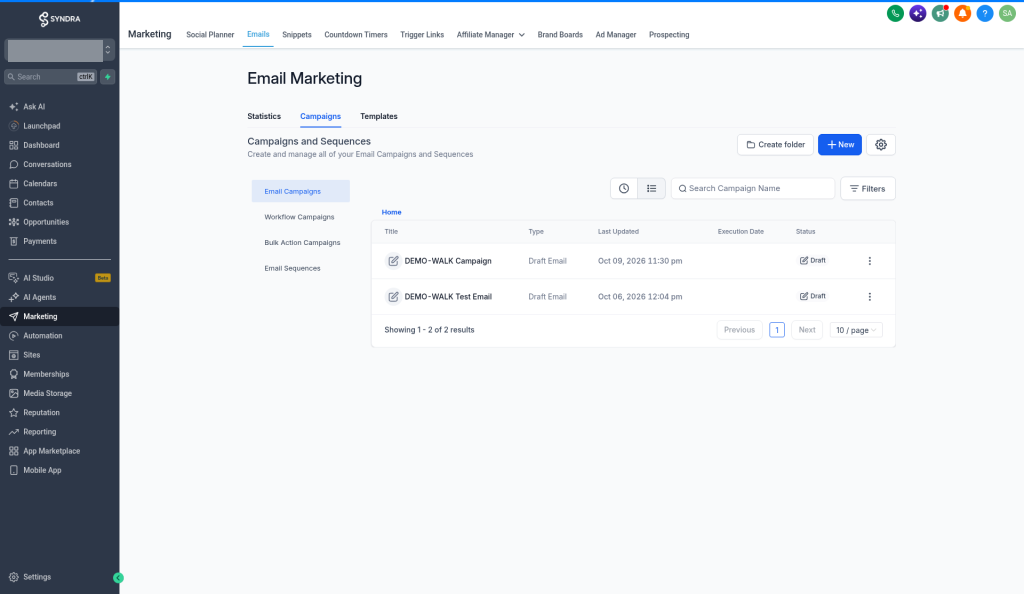
What you should see: the editor opens with your draft, ready to keep working.
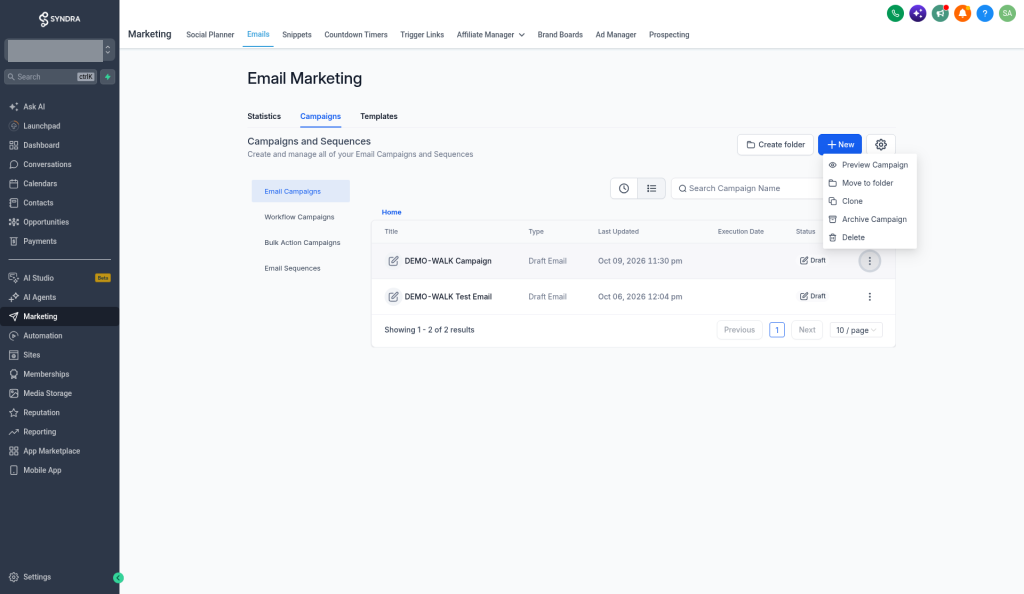
Each row also has a ⋮ menu at the right. For a draft, it offers only Preview Campaign, Move to folder, Clone, Archive Campaign and Delete.
What success looks like
- You can find Marketing > Emails and the Statistics, Campaigns and Templates sub-tabs.
- You know what each of the four filters on the left is for.
- You started a campaign from + New > Blank and chose an editing experience.
- You renamed it, clicked Save, and saw Your campaign has been saved successfully.
- Your campaign appears in the Email Campaigns list with the status Draft, and you can reopen it by clicking its title.
- You have not sent anything to anyone.
Common mistakes and troubleshooting
The Statistics page shows numbers you don't recognise.
If you see the banner You're viewing sample data, those are example figures, not your results.
You don't see Marketing or Emails.
Your login may not have access to email marketing, or it may not be part of your plan. Ask your account admin, or email us.
You can't find your new campaign in the list.
Make sure Email Campaigns is selected on the left, not Workflow Campaigns, Bulk Action Campaigns or Email Sequences. If you didn't rename it, look for Untitled campaign name.
You have several "Untitled campaign name" drafts.
Each click on Blank creates a new draft right away. Open each one by clicking its title to see which is yours, then use the ⋮ menu on the ones you don't need. If you aren't sure, email us before you delete anything.
You closed the editor before clicking Save.
Autosave is on, so your draft should still be in the list. Click its title to reopen it and check your work, then click Save.
You clicked Create an email sequence by mistake.
Leave it without filling anything in. Sequences are a series of emails over time and have their own article. If you think a sequence was created, check the Email Sequences filter, or email us.
The editor looks different from the screenshots.
You may have chosen a different editing experience (Design editor, Code Editor or Plain text editor). The screenshots show the Code Editor. If you see a different layout, look for the campaign name and Save at the top of the editor, or email us.
A list is empty and you're not sure whether your newsletter was ever set up.
Check each of the four filters and the Templates sub-tab. If you still can't find it, email us rather than recreating it.