
Find your email campaigns and preview one
What it is and why it matters
Email campaigns are the messages you send to many clients at once: a holiday grooming reminder, a new-service announcement, a "we have openings this week" note, or a thank-you to regulars. Before a campaign goes out, and after it's sent, you'll want to find it quickly and see exactly what your clients will see or have seen.
In Syndra, your campaigns live under Marketing > Emails, on the Campaigns tab of Email Marketing. The page is called Campaigns and Sequences, and it describes itself as the place to "Create and manage all of your Email Campaigns and Sequences". Each campaign row shows its status, so you can tell at a glance which ones are still drafts. From any row you can open a preview of the email.
This article shows you how to find a campaign and preview it. Sending yourself a test is covered under Common mistakes and troubleshooting below. Creating a new campaign isn't covered here.
What you need before you start
- Access to Marketing. If you don't see it, ask your account admin.
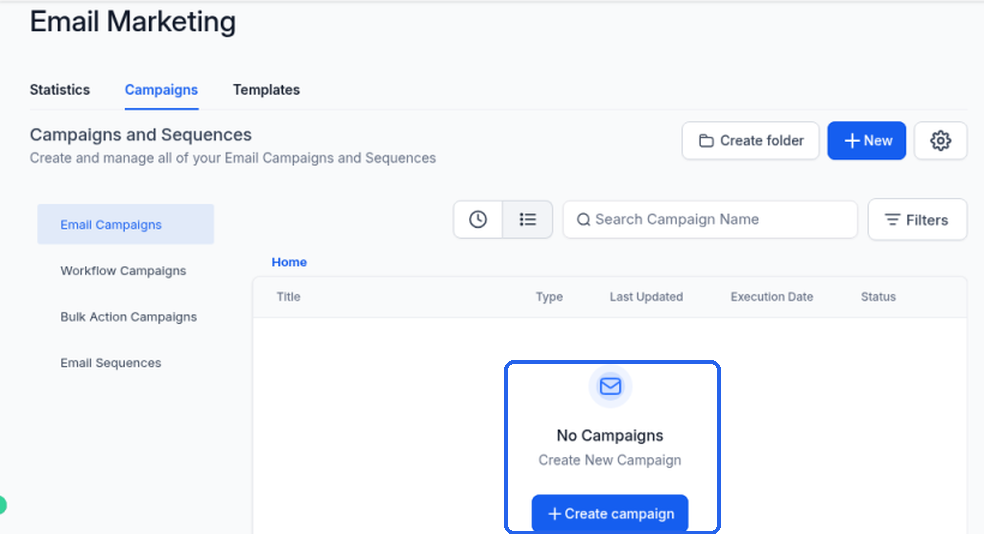
At least one campaign. If you haven't made a campaign yet, your list will be empty and there will be nothing to preview. An empty list shows a mail icon, No Campaigns, "Create New Campaign" and a + Create campaign button.
Steps
In the left-hand menu, click Marketing.
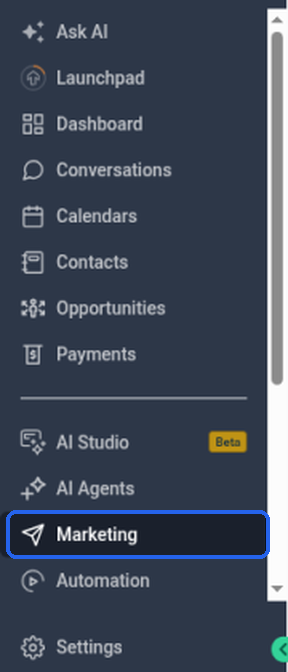
What you should see: the Marketing area opens, with a row of tabs across the top: Social Planner, Emails, Snippets, Countdown Timers, Trigger Links, Affiliate Manager, Brand Boards, Ad Manager and Prospecting.
What you should see (first open): Marketing opens on the Social Planner tab.
In the row of tabs across the top, click Emails.

What you should see: a page headed Email Marketing, with three tabs: Statistics, Campaigns and Templates. Emails opens on Statistics first (may show sample data) — click Campaigns for your list (step 3).
Click the Campaigns tab.
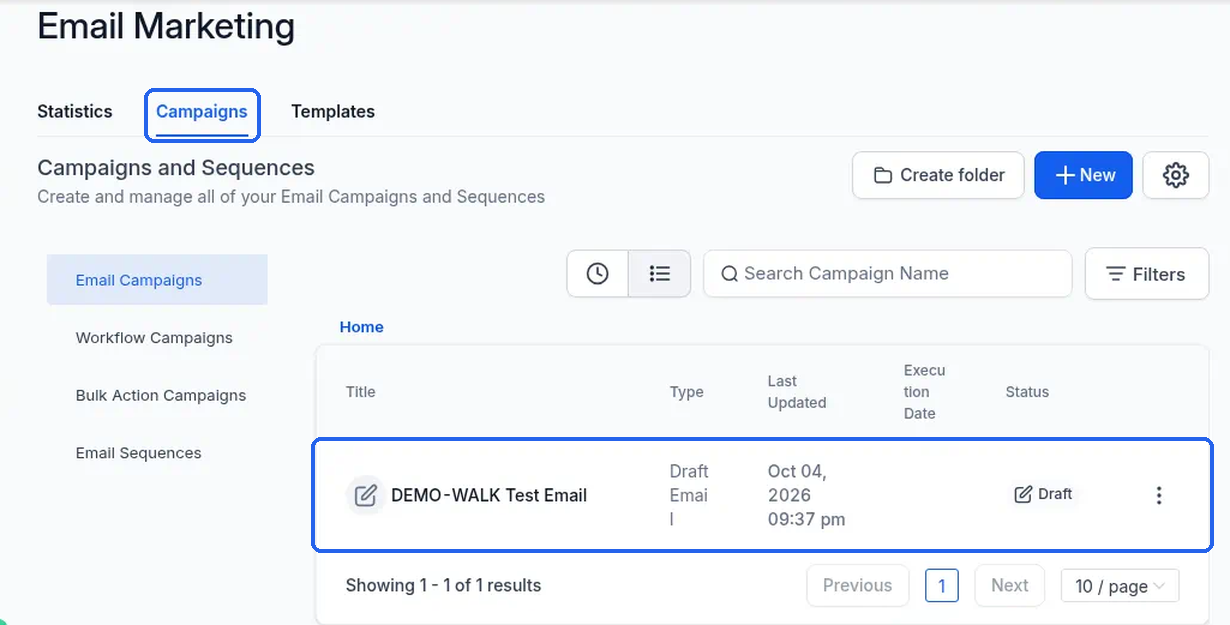
What you should see: the Campaigns and Sequences list, with Create folder, + New and a gear button at the top right. Each row shows the campaign's Title, Type, Last Updated, Execution Date and Status. A campaign you haven't sent yet shows the type Draft Email and the status Draft, with no execution date.
On the left, click the kind of campaign you're looking for: Email Campaigns, Workflow Campaigns, Bulk Action Campaigns or Email Sequences.
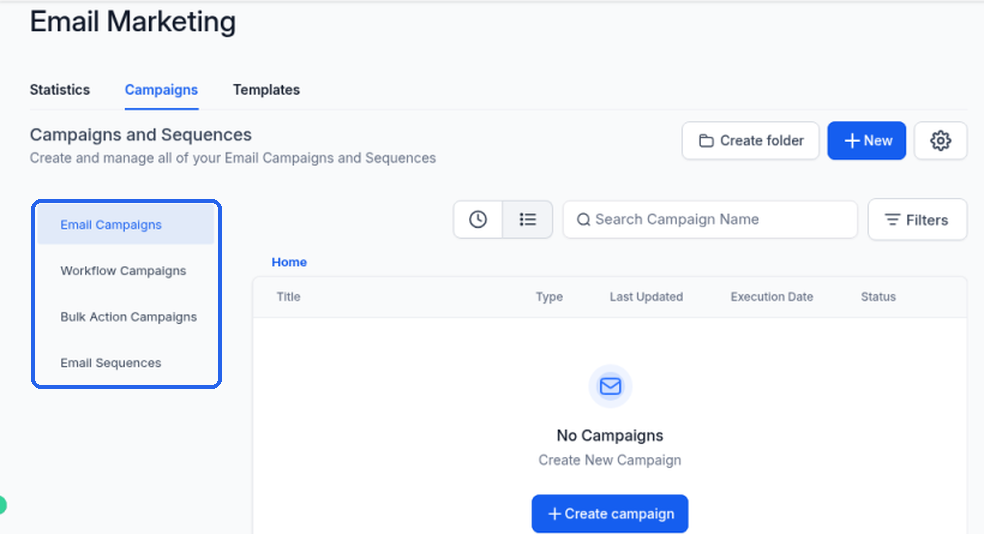
What you should see: Email Campaigns is selected (highlighted in blue) when the page opens.
What each list may show when it's empty or has only a draft:
- Email Campaigns: your campaigns. A draft shows Type Draft Email and Status Draft, with a count such as "Showing 1-1 of 1".
- Workflow Campaigns: may list emails that belong to your automations, even if you haven't made any campaigns yourself.
- Bulk Action Campaigns: "No Campaigns" and "Create New Campaign"
- Email Sequences: "No email sequences", "We couldn't find any email sequences…" and "+ Create an email sequence"
If you have lots of campaigns, type part of the campaign's name in the Search Campaign Name box to narrow the list.
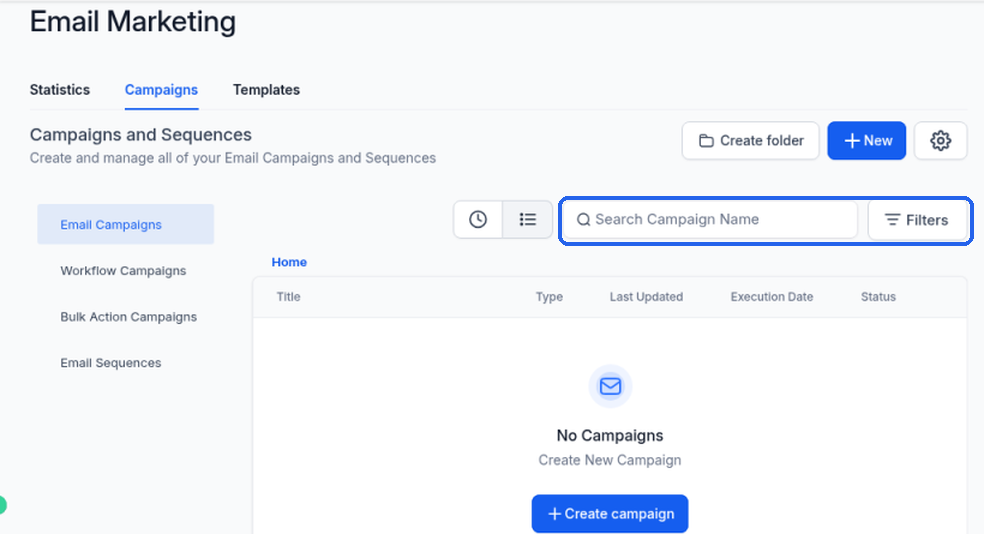
What you should see: the search box sits above the list, with a Filters button to its right.
On the row of the campaign you want, click the three-dot menu (⋮) at the far right.
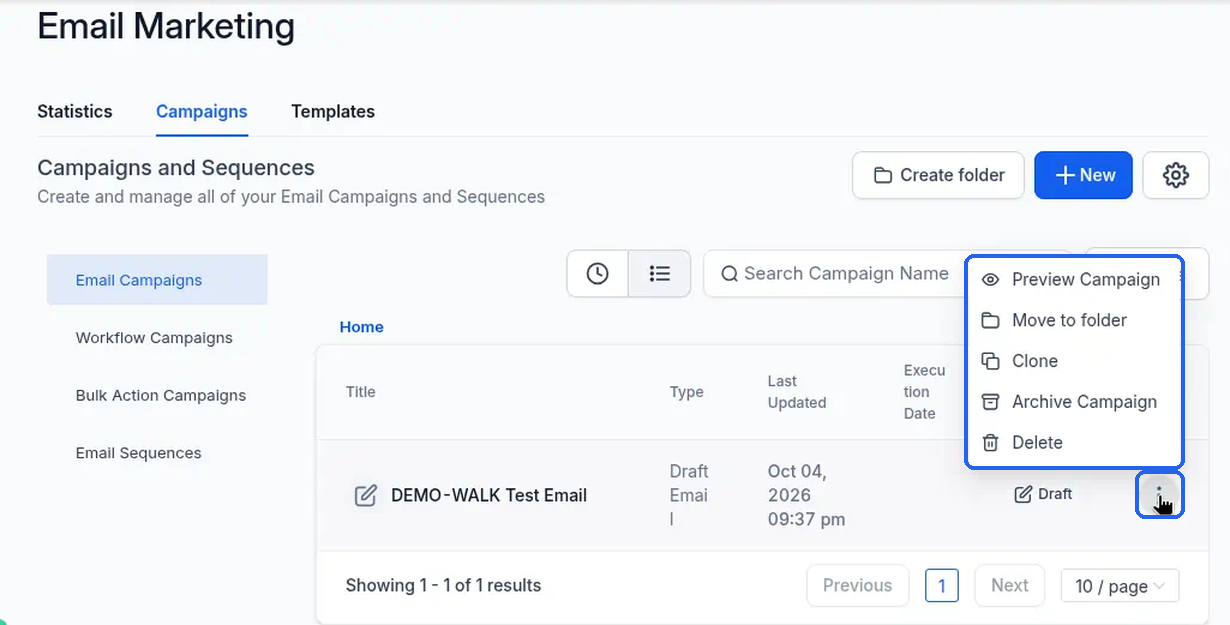
What you should see: a menu with Preview Campaign, Move to folder, Clone, Archive Campaign and Delete.
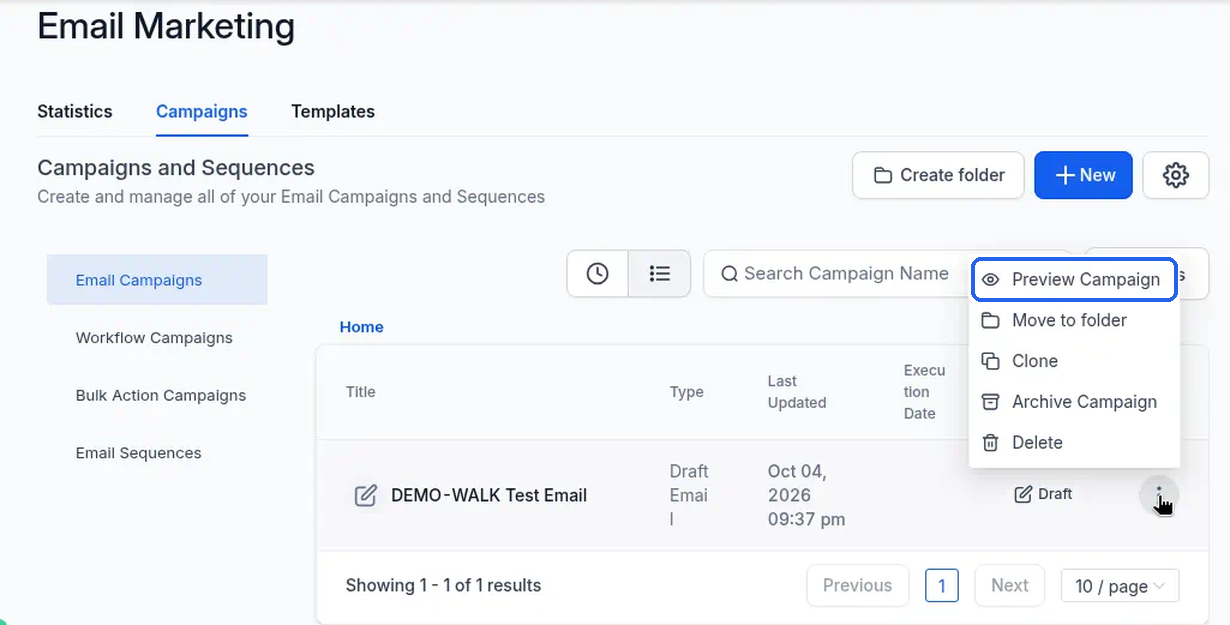
Click Preview Campaign.
What you should see: a new browser tab opens with a plain rendered copy of the email, for example the "View this email in browser" line at the top and the email's heading.

Read the email through from top to bottom, then close the preview tab to return to your campaign list.
What you should see: your campaign list, still open in the original tab, just as you left it.
What success looks like
The preview tab shows a plain rendered copy of your email, so you can read the content the way it was built. Your campaign list stays open in the original tab, just as you left it.
Keep in mind that Preview Campaign shows one plain rendered copy of the email. It doesn't have a switch between desktop and mobile layouts.
Common mistakes and troubleshooting
You can't find your campaign.
Check which item is selected on the left, and try the others (Email Campaigns, Workflow Campaigns, Bulk Action Campaigns, Email Sequences). Clear the search box too, in case an old search is hiding it.
You clicked the wrong item in the three-dot menu.
Preview Campaign sits in the same short menu as Move to folder, Clone, Archive Campaign and Delete. Read the label before you click. If a confirmation window appears and you didn't mean to make that change, cancel it.
Archive Campaign on a draft: there's no confirmation — it archives straight away, and the Email Campaigns list can show "No Campaigns". To restore it, click Filters and set Status to Archived, open the row's ⋮ menu and click Unarchive Campaign, then click Clear to remove the filter. Delete opens a window that asks "Delete this email campaign?" and says "You're about to delete Campaign … When you click delete, this will be permanently removed from your account.", with Cancel and Delete buttons — use Cancel if you want to keep the draft. Archiving or cancelling Delete does not send or schedule the campaign.
Nothing seems to open when you click Preview Campaign.
It opens in a new tab. Check your browser's tab bar, and allow pop-ups for Syndra if your browser blocked the new tab.
You want to see the phone layout.
Preview Campaign doesn't switch to a mobile view. Inside the campaign's email builder, device controls are labelled Home, Desktop, and Mobile (tooltips). Mobile narrows the canvas; switch back to Desktop when you're done. Header shows Autosave on. You can check the layout without saving edits. Building and editing a campaign isn't covered here.

Sending yourself a test.
In the email builder top bar, open the ⋮ menu (next to Preview, Save and Send or schedule) and choose Test Email — not Send or schedule, and not Preview alone. A Test Email side panel opens ("Send a test email to your own inbox or someone else's") with Sender email*, optional Sender name, Send a test to* (up to 5 emails, commas), optional Preview Text, Email subject, and an optional "Set as default sender and receiver information" checkbox. Fill the required fields; Send test email stays grey until they are filled. After you click Send test email, a spinner shows and the panel closes. You may not see a separate success message. Check the inbox you sent it to. Preview alone opens Desktop/Tablet/Mobile plus Preview Contact Info and does not send. Your campaign list should still show Draft with no execution date — a test does not schedule or publish the campaign.