
Start connecting the calendar you already use
What it is and why it matters
You may already keep a personal or work calendar on your phone, often Google or Outlook. If Syndra can't see that calendar, it doesn't know you have a dentist appointment at 2:00 or that you blocked Friday afternoon for a supply run, and a client could book you right into that gap.
Connecting your existing calendar is designed to help with that. On the connection screen, Syndra describes connecting as a way to "check availability, update appointments as they're scheduled and avoid double bookings."
Connections are set up per team member. The Connections tab has a My staff selector at the top, and the connections you see belong to the person selected there.
This article takes you from the Syndra menu to the moment you hand over to your calendar service. It doesn't cover finishing the connection. That will be covered in a separate article (see What happens next at the end).
What you need before you start
- Access to Settings > Calendars. If you don't see it, ask your account admin.
- The sign-in details for the calendar you want to connect. For Google, that's your Google account. The Outlook calendar option says it's for Office 365, Outlook.com, live.com or hotmail calendars, and the Calendly option is for your Calendly account.
- For an iCloud calendar: your Apple ID, plus an app-specific password. The iCloud form in Syndra asks you to create that password on https://appleid.apple.com/ before you connect. The form asks for an app-specific password, so don't enter your regular Apple ID password there.
- A few minutes on a computer. For Google, the sign-in opens in a separate pop-up window, which works best on a computer.
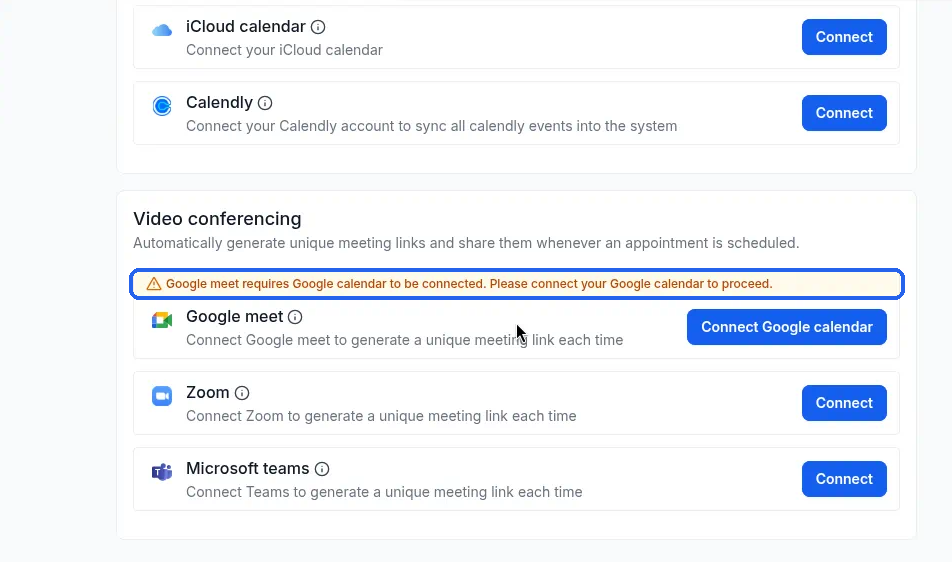
- If you plan to use the Google meet video option for consultations, connect your Google calendar first. The app shows a warning saying Google meet needs a connected Google calendar.
Steps
In the left-hand menu, click Settings.
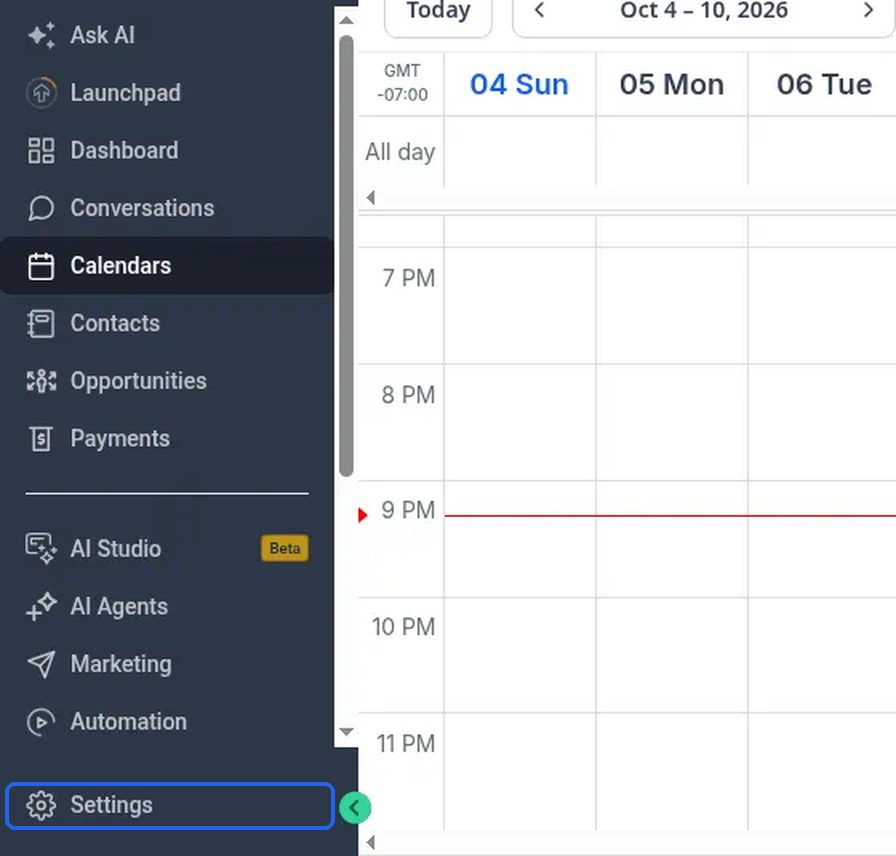
What you should see: the Settings menu opens, with sections headed MY BUSINESS, BUSINESS SERVICES and OTHER SETTINGS.
Under BUSINESS SERVICES, click Calendars.
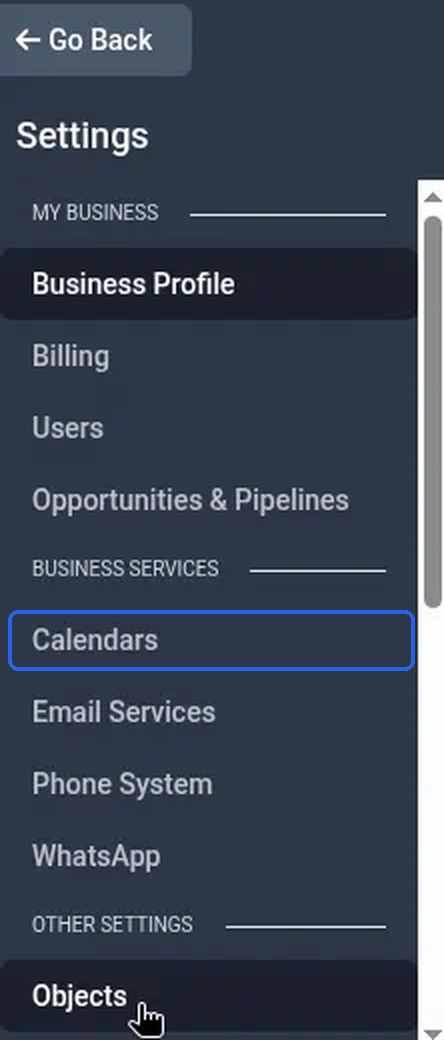
What you should see: a page titled Calendars with four tabs along the top: Calendars, Preferences, Availability and Connections.
Click the Connections tab.
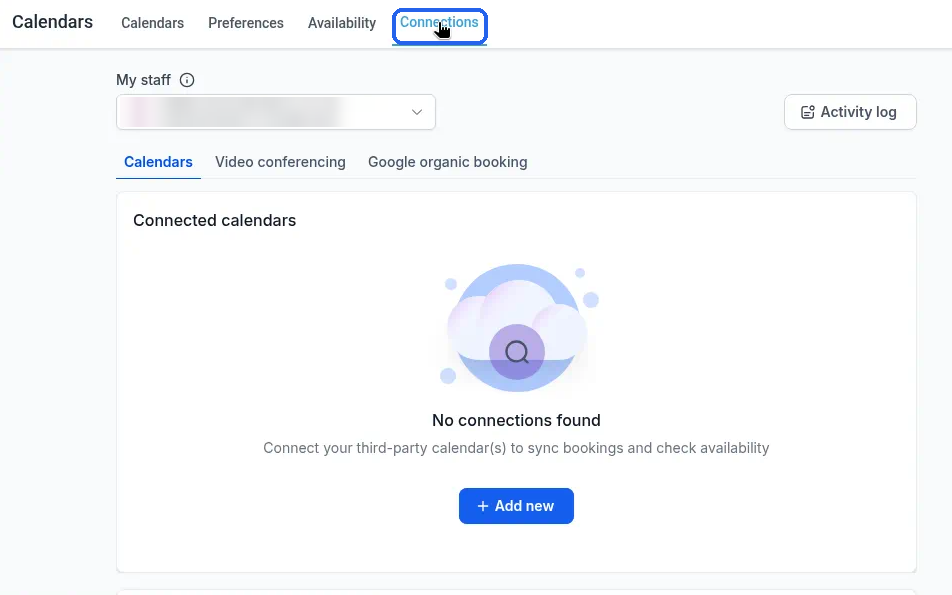
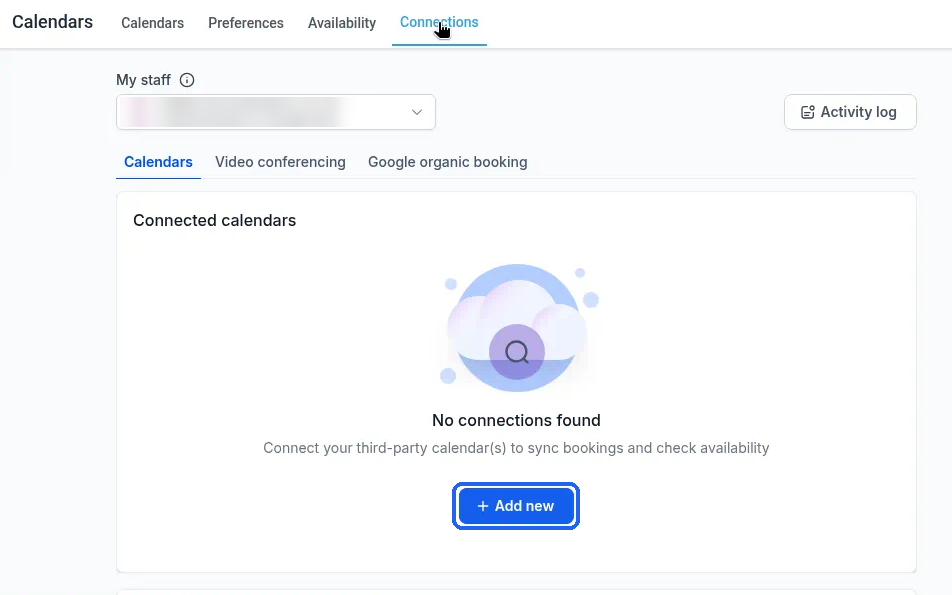
What you should see: a My staff selector, an Activity log button, and sub-tabs that start with Calendars and Video conferencing. (There's a third sub-tab this article doesn't cover.) If nothing is connected yet, the page says No connections found and "Connect your third-party calendar(s) to sync bookings and check availability", with a + Add new button.
Check the My staff selector at the top and make sure it shows the team member whose calendar you're connecting. The connections on this tab belong to that person.
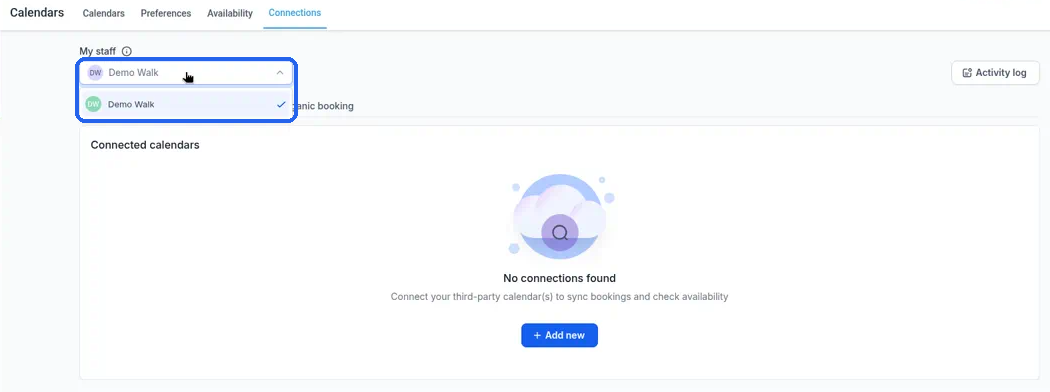
What you should see: click My staff to open it. The selected name has a tick next to it. In our example account the list held just one name, Demo Walk (with the initials DW), and it was already selected. If the name you expect isn't there, email [email protected] before you go any further.
Stay on the Calendars sub-tab and click + Add new.
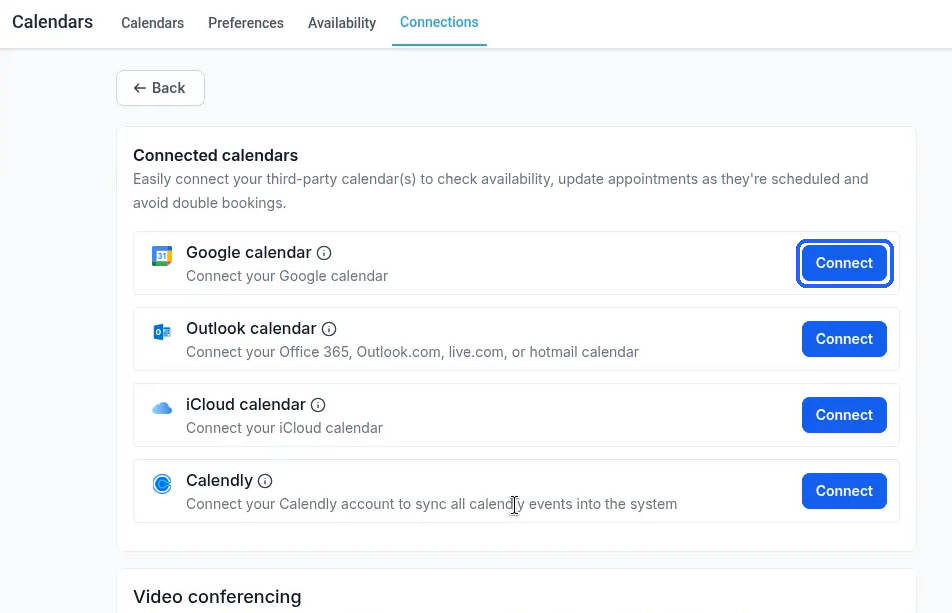
What you should see: a Connected calendars panel with a Back button at the top left and the line "Easily connect your third-party calendar(s) to check availability, update appointments as they're scheduled and avoid double bookings." Each calendar service has its own row with a Connect button:
- Google calendar: "Connect your Google calendar"
- Outlook calendar: "Connect your Office 365, Outlook.com, live.com, or hotmail calendar"
- iCloud calendar: "Connect your iCloud calendar"
- Calendly: "Connect your Calendly account to sync all calendly events into the system"
Below that is a separate Video conferencing section. You don't need it for this article.
Find the row for the calendar you use and click Connect on that row. This is where you hand over to your calendar service, and what you see next depends on which one you picked.
What you should see if you chose Google calendar: a separate sign-in window opens. It's a new pop-up window, not a new tab. If you don't see it, check whether your browser blocked a pop-up. You'll be taken to Google to sign in and approve access. Follow the steps there.
Google will ask you to choose an account. Use the account that holds your real working schedule, not an old or unused one. Google shows the name of the app asking for access. It may not say Syndra. That's expected. If you're unsure, email [email protected] before you approve access.
What you should see if you chose iCloud calendar: you stay in Syndra, and a form titled iCloud calendar integration opens on top of the page.
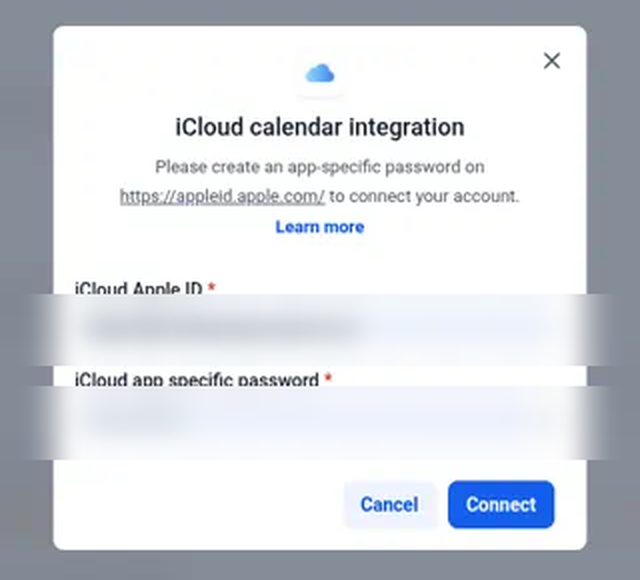
The form asks you to create an app-specific password on https://appleid.apple.com/ to connect your account. It has two required fields:
- iCloud Apple ID, with the hint "Email or phone number"
- iCloud app specific password, with the hint "App specific password" and an eye icon to show or hide what you type
At the bottom are Cancel and Connect, and there's an X in the top corner to close the form. Filling in the form and clicking Connect isn't covered here. It will be covered in a follow-up article. If you're not ready to connect yet, click Cancel. Nothing is connected, and the Connections tab still says No connections found.
What you should see if you chose Outlook calendar or Calendly: what comes after Connect for these two isn't covered here yet. If you need help, email [email protected].
What success looks like
You've finished this part when:
- You reached the Connected calendars panel and saw the Google calendar, Outlook calendar, iCloud calendar and Calendly rows, each with a Connect button.
- For Google, a separate sign-in window opened where Google asks you to choose an account.
- For iCloud, the iCloud calendar integration form opened inside Syndra.
Until a connection is finished, the Connections tab keeps showing No connections found for the person selected in My staff.
Common mistakes and troubleshooting
You see "Error: Google calendar connection. There was a problem connecting to Google calendar. Please try again."
This red message appears if the Google sign-in window is closed before you finish signing in. Click Connect on the Google calendar row again to reopen the sign-in window.

Nothing happens when you click Connect on the Google calendar row.
Your browser may have blocked the pop-up window. Allow pop-ups for Syndra in your browser and click Connect again.
You're looking at someone else's connections.
Check the My staff selector at the top of the Connections tab. Connections belong to the person selected there.
You can't find the Connect buttons.
Make sure you're on the Connections tab, then the Calendars sub-tab, and click + Add new. The Connect buttons only show on the Connected calendars panel.
You see a warning about Google meet.
The Video conferencing section on the same screen says: "Google meet requires Google calendar to be connected. Please connect your Google calendar to proceed." That's expected until your Google calendar is connected.
More than one Google account shows up.
This is common if a personal Google account is signed in on the same browser. When Google asks you to choose an account, pick the one that holds your working schedule. If you think you've picked the wrong one, email [email protected] and we'll help.
The iCloud form already has an email or password filled in.
Your browser may fill in a saved login for you. Before you go any further, check that it's your own iCloud Apple ID and the app-specific password you created. If you're not sure, click Cancel. Nothing is connected when you cancel.
Which calendar should you connect?
The one where your real appointments and time off live. You don't need to connect calendars nobody books from.
What happens next
Once you've clicked Connect, the rest of the process continues in the window or form that opens. Finishing the connection, and what you'll see back in Syndra afterwards, will be covered in a separate article. Until then, if anything's unclear after you click Connect, email [email protected] and we'll help you through it.