
Find your website in Syndra and see all of its pages
What it is and why it matters
If Syndra hosts your business website, everything about it lives under Sites: the pages, when they were last changed, and the buttons to edit them. Before you change a price, swap a photo or update your hours, you need to find the right website and the right page. That's what this article covers.
It also helps you answer common questions like:
- "Which website is mine?" Find it in the Websites list.
- "When was my website last changed?" Check Last updated.
- "Which page is the About page?" Look at the page cards.
Editing a page is covered separately in Edit a website page and preview your changes.
What you need before you start
- Access to Sites. If you don't see it, ask your account admin.
- A website already set up in Syndra. If Syndra already has your site set up, it's already here. If the list is empty, email us before you create a new one, so you don't end up with two versions of your site.
Steps
In the left-hand menu, click Sites.
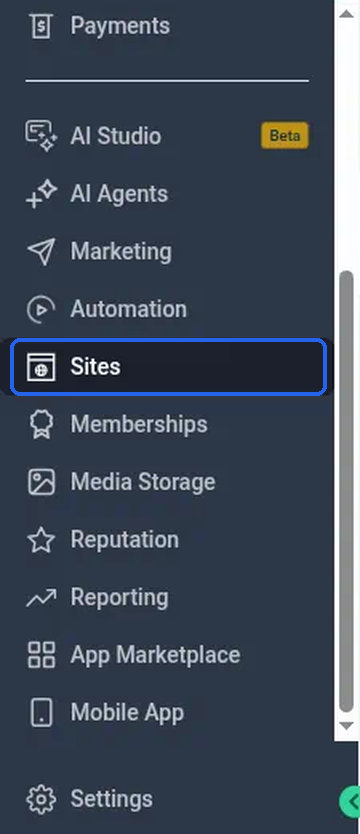
What you should see: the Sites area opens with a row of tabs across the top. They include Funnels, Websites, Stores, Webinars, SEO (Beta), Analytics, Blogs, Client Portal, Forms, Surveys, Quizzes, Chat Widget and QR Codes. On a narrow window, the last few tabs may be cut off at the right edge. Sites opens on the Funnels tab first — not Websites — so click Websites next.
Click the Websites tab.
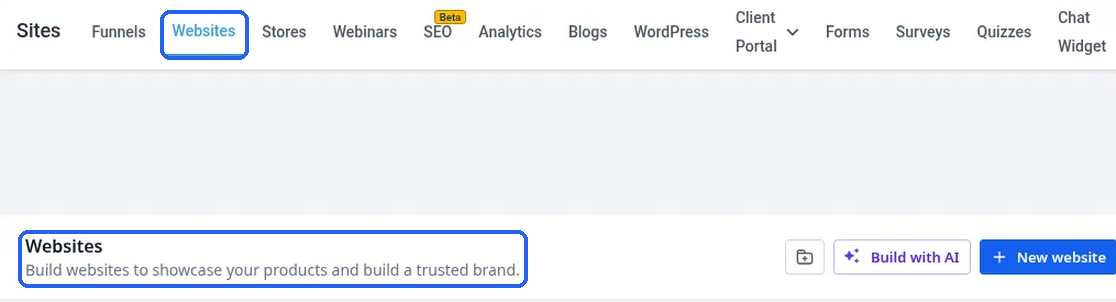
What you should see: a page titled Websites ("Build websites to showcase your products and build a trusted brand."), with a Search for websites box and a table of your websites. The columns are Name, Last updated and Website pages (how many pages the site has). At the top right are Build with AI and + New website. You don't need either of those to find a site you already have.
If you have more than one website, type part of its name in Search for websites.
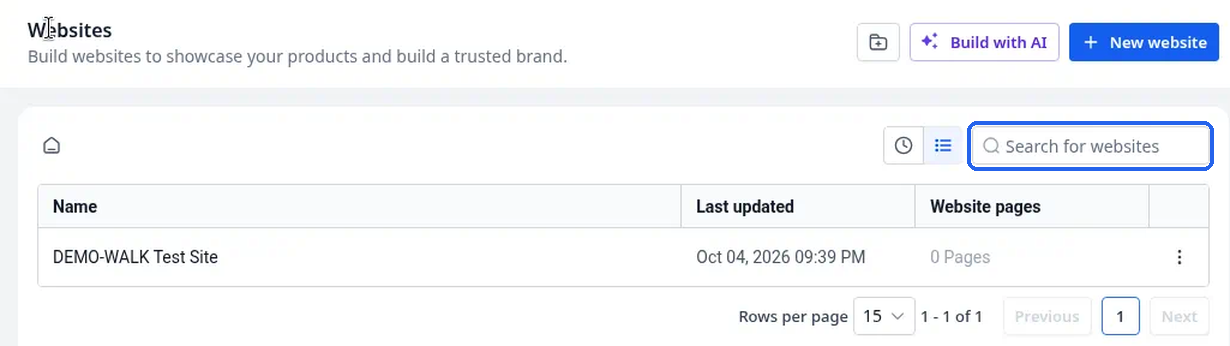
What you should see: the table filters as you type. For example, typing part of your site's name narrows the list to the matching site.
Check the Last updated date and time on your website's row.
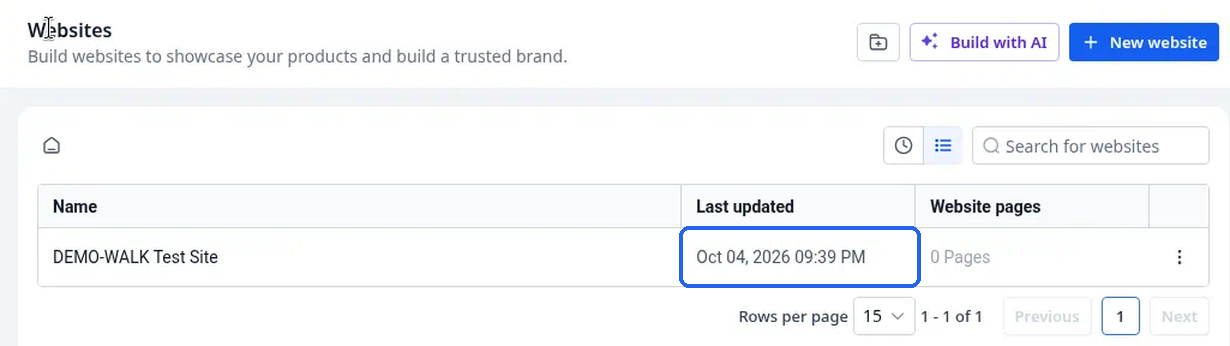
What you should see: the date and time the website was last changed, and how many pages it has.
Last updated is site-level on the Websites list (not a per-page row). It changes when you save in the builder (even without publishing). The builder header shows Autosave on and can show Saving… and then Saved just now — edits may autosave before you click the disk.
Click your website's name.
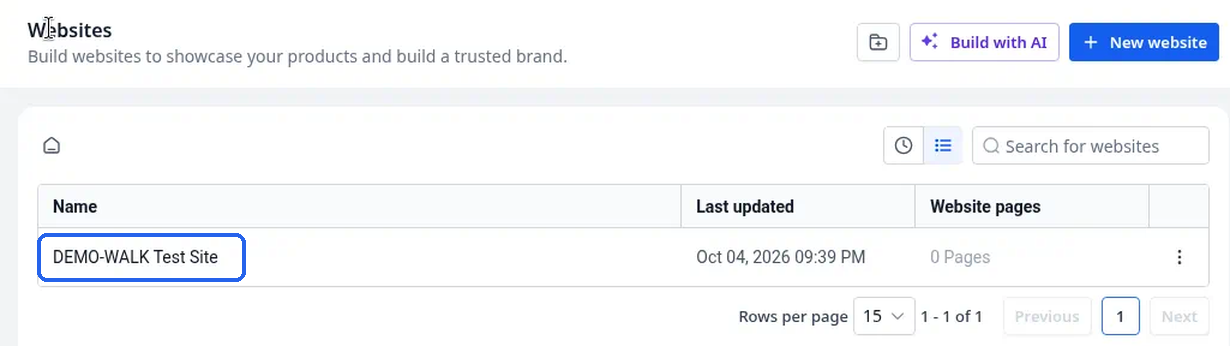
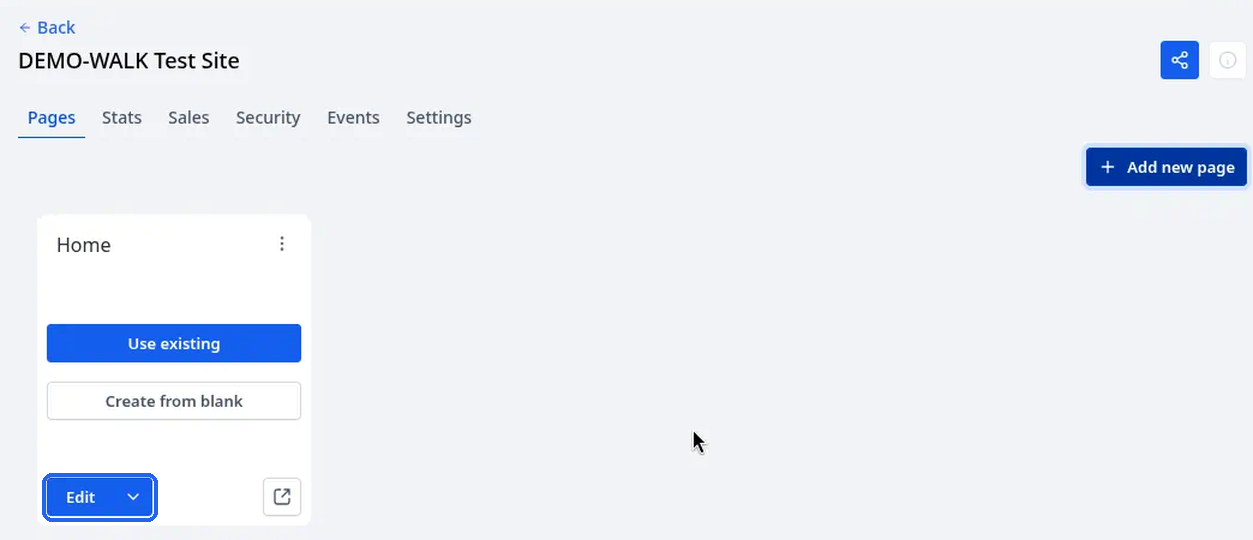
What you should see: the website's own page. It has a Back link and the website name at the top left, and the tabs Pages, Stats, Sales, Security, Events and Settings. It opens on Pages.
On the Pages tab, look through the page cards to find the page you want.
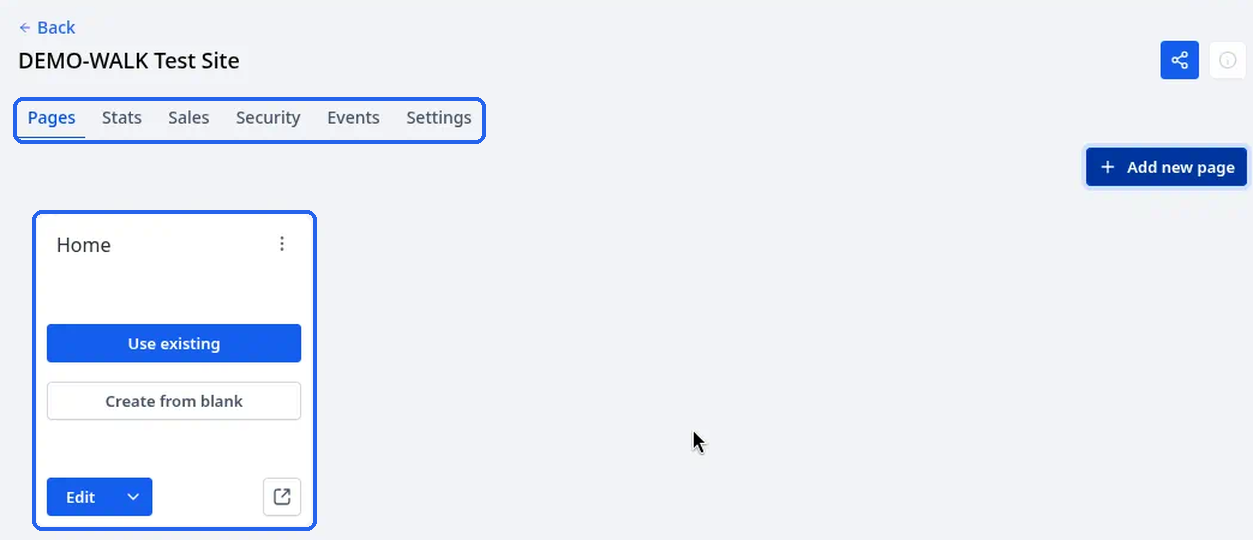
What you should see: one card per page. Each card shows the page name (for example Home) with a ⋮ menu at its top right, a small preview of the page, an Edit button with a small arrow beside it, and a square icon with an arrow at the bottom right. A brand-new blank page shows Use existing and Create from blank buttons instead of a preview until it has content.
(Optional) The square icon with an arrow at the bottom right of a card is labelled Preview Link (tooltip). It opens that page in a new browser tab.
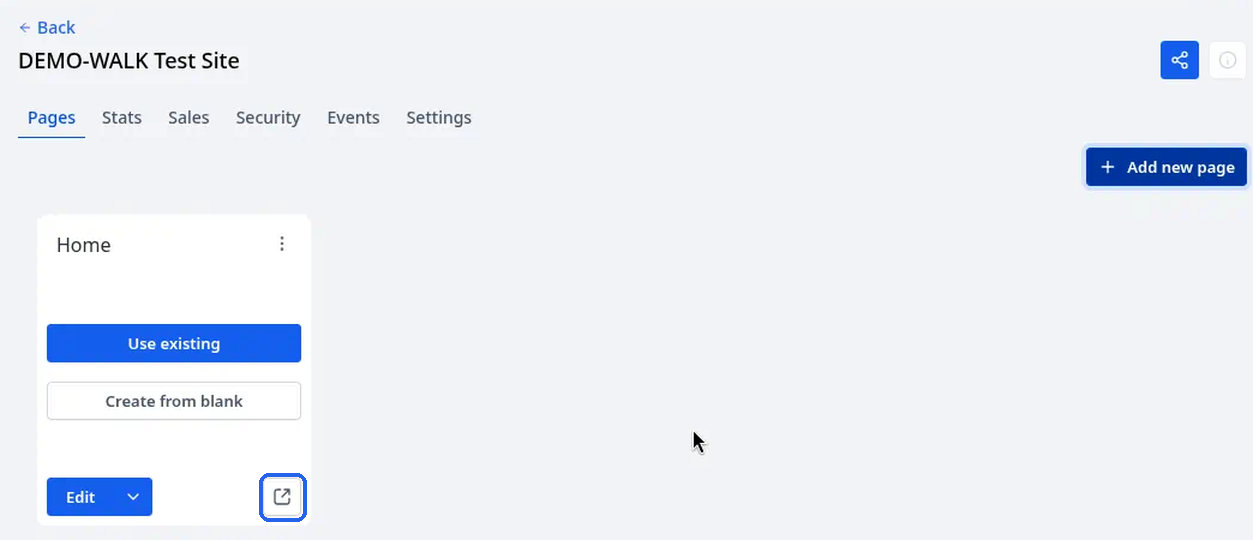
Even on a page that has never been published, it opens a preview of the page content.
At the top right of the site header (not on the Home card) you may see small icons.
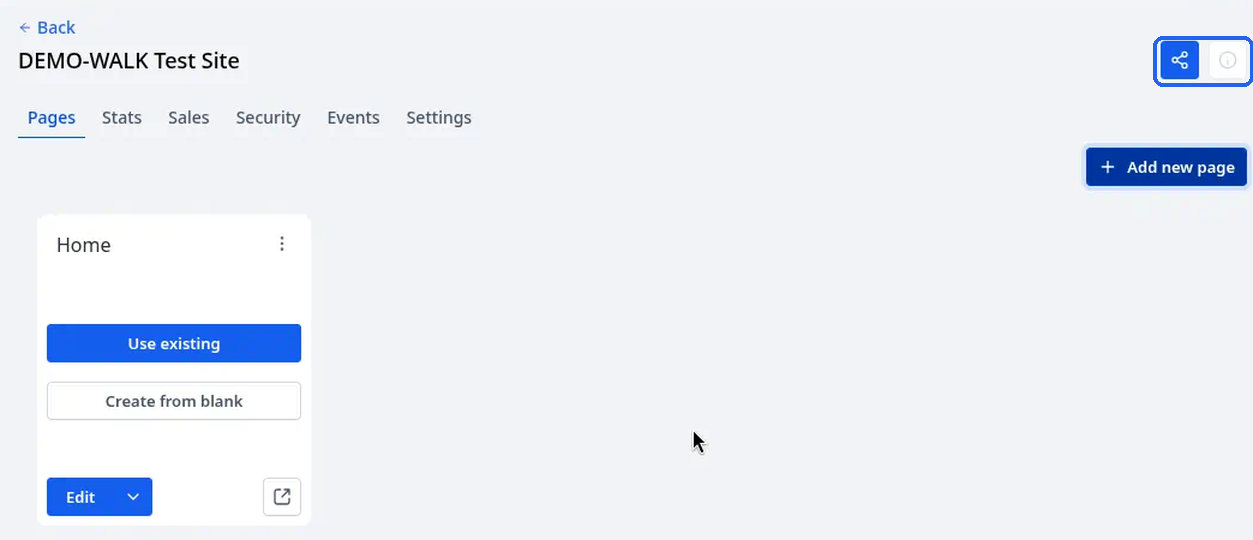
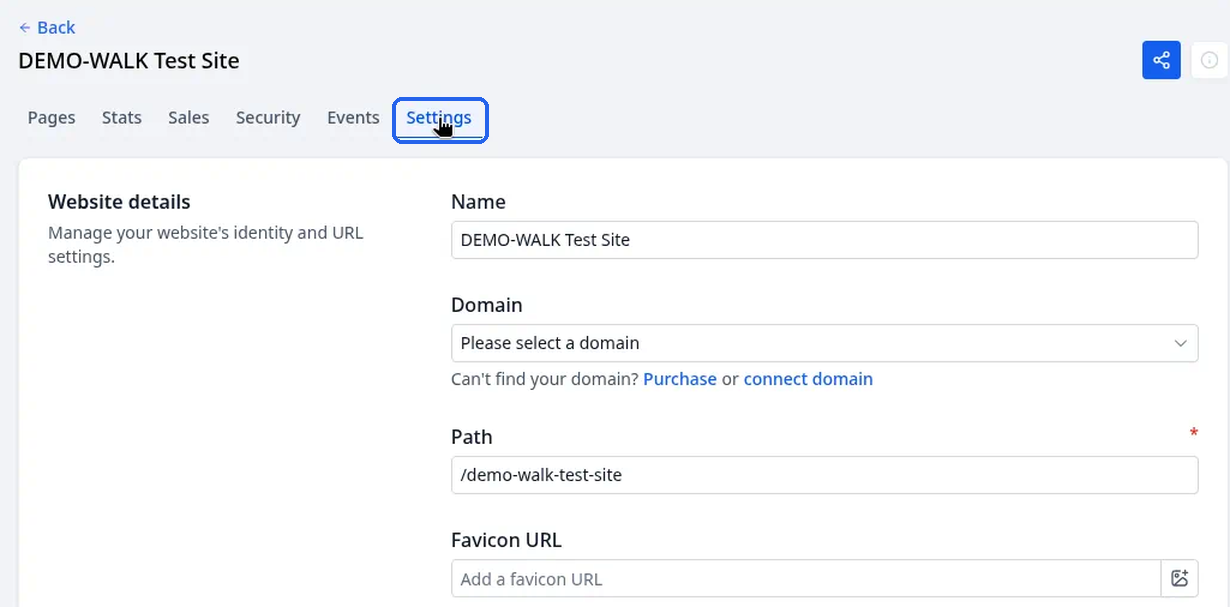
The info icon's tooltip reads "What is the Website URL?". You may also see a share icon. You don't need it to find or edit your pages. To find your website's address, check the Domain on the website's Settings tab (below).
When you're ready to change the page, click Edit on its card and continue with Edit a website page and preview your changes.
What you should see: the page builder opens, with Publish at the top right. Clicking Edit doesn't change anything on your website by itself.
The website's Settings tab
The Settings tab on the website's page shows Website details ("Manage your website's identity and URL settings."): the website's Name, its Domain (with a "Can't find your domain? Purchase or connect domain" link), its Path, and a Favicon URL. Further down are Performance & compliance, SEO & AEO and Website access, with a Save button at the bottom. You don't need to change anything here to find or edit a page.
Website access holds a Delete website button. The screen warns: "Deleting this website will permanently remove all products, pages, settings, and data associated with it." Don't use it to tidy up. If you think a website should be removed, email us first.
What success looks like
- You can find your website in Sites > Websites and see when it was last updated and how many pages it has.
- You can open your website and see all of its pages as cards on the Pages tab.
- You know which card to click Edit on when you're ready to make a change.
Common mistakes and troubleshooting
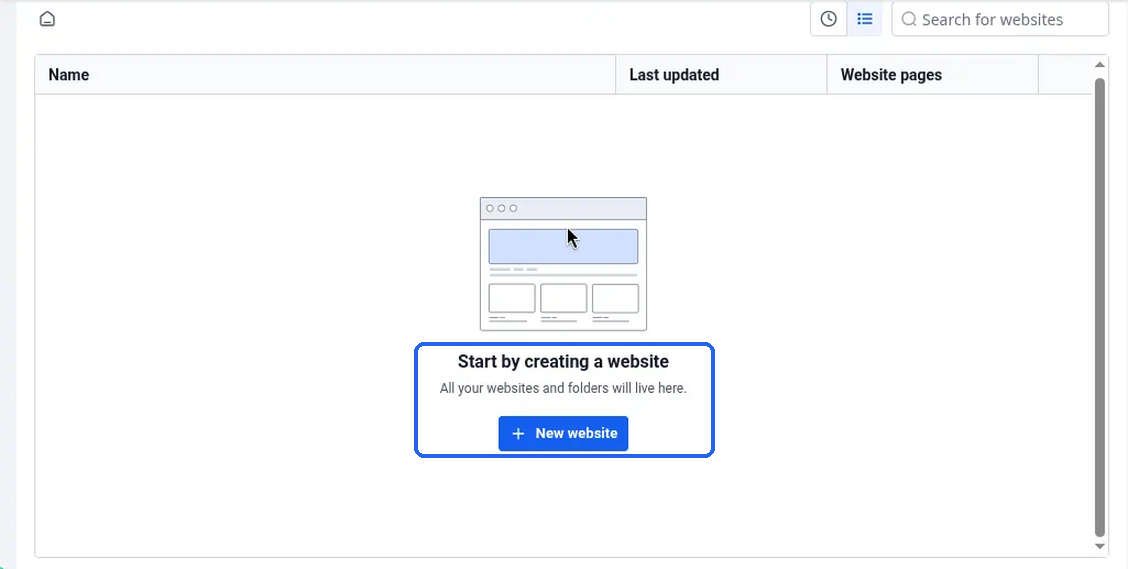
The Websites list is empty.
It says "Start by creating a website" and "All your websites and folders will live here." Your site may be built as a funnel instead of a website, so check the Funnels tab too. If you still can't find it, email us. Don't create a new website to replace one you can't find.
You don't see the Websites tab.
Your login may not have access to Sites. Ask your account admin, or email us.
There are several websites in the list and you're not sure which is yours.
Compare Website pages and Last updated, and check the website's Settings tab for its Domain.
A website shows "0 Pages".
A brand-new blank website has no pages yet. Pages are added on the Pages tab with + Add new page.
"I made a change but my website looks the same."
Saving and previewing don't publish your changes. Publishing will be covered in a separate article. If you need help now, email [email protected]. See Edit a website page and preview your changes. Also try refreshing your browser, since it may be showing an older copy.
You clicked + New website by mistake.
A Create new website dialog asks for Website name *, and offers three choices, From blank, Build with AI and From templates (each with a short description), with the buttons Cancel and Create (Continue when Build with AI is selected). Click Cancel — the list stays unchanged (your existing sites remain).
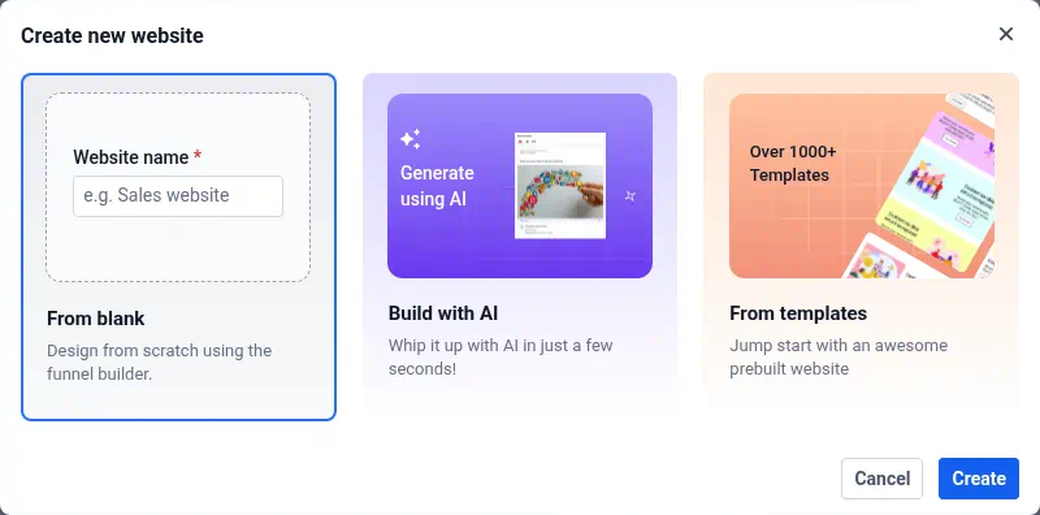
Build with AI can create a site as soon as you continue.
Choosing Build with AI then Continue immediately creates a site (it may be named "AI Generated Website") and opens the builder — you do not have to click Generate first. The Ask AI panel has two tabs, Assist and Build, a greeting with your name ("…let us set the foundations"), boxes for the page name, business niche, page goal, target audience and what you're offering, the Generate and Customize buttons, and the note "Ask AI can make mistakes. Please double-check responses." The page area shows Start Creating your Website Page with Blank Section, Insert Element and Generate with AI. If you get stuck, delete the accidental site (see below) or email us.
You're not sure what the small menus do.
The small arrow next to Edit on a page card opens Edit page details, Edit in a New Tab and Publish page. The card's ⋮ menu offers Settings, Clone, Products and Delete. In the Websites list, the ⋮ at the far right of each website's row offers Edit, Clone, Move to folder, Upload To website templates, Share and Delete. To open a page for editing, click the word Edit itself.
Deleting a website from the list.
The row ⋮ offers Edit, Clone, Move to folder, Upload To website templates, Share, Delete. Delete opens "Delete website — Are you sure you want to delete the website …? This action cannot be undone." with Cancel and Delete buttons. After you confirm Delete, the site is gone from the list. Prefer emailing us before deleting a real client site.